Demos feel more personal with a face and a voice. PapCam can record your microphone and webcam alongside the screen. The webcam is recorded separately, so you can still change its shape, size and position after recording.
Turn on microphone and camera
- Open the PapCam popup and switch Microphone and/or Camera to ON.
- The first time, PapCam opens a small permission tab. Click Allow in Chrome's prompt there. The popup hint changes to "Voice narration ready" or "Camera bubble ready".
- Open the popup again and choose what to record. Your voice is mixed with the tab audio, and the camera is recorded as a separate bubble.
Style the camera bubble
Open the Camera panel in the editor:
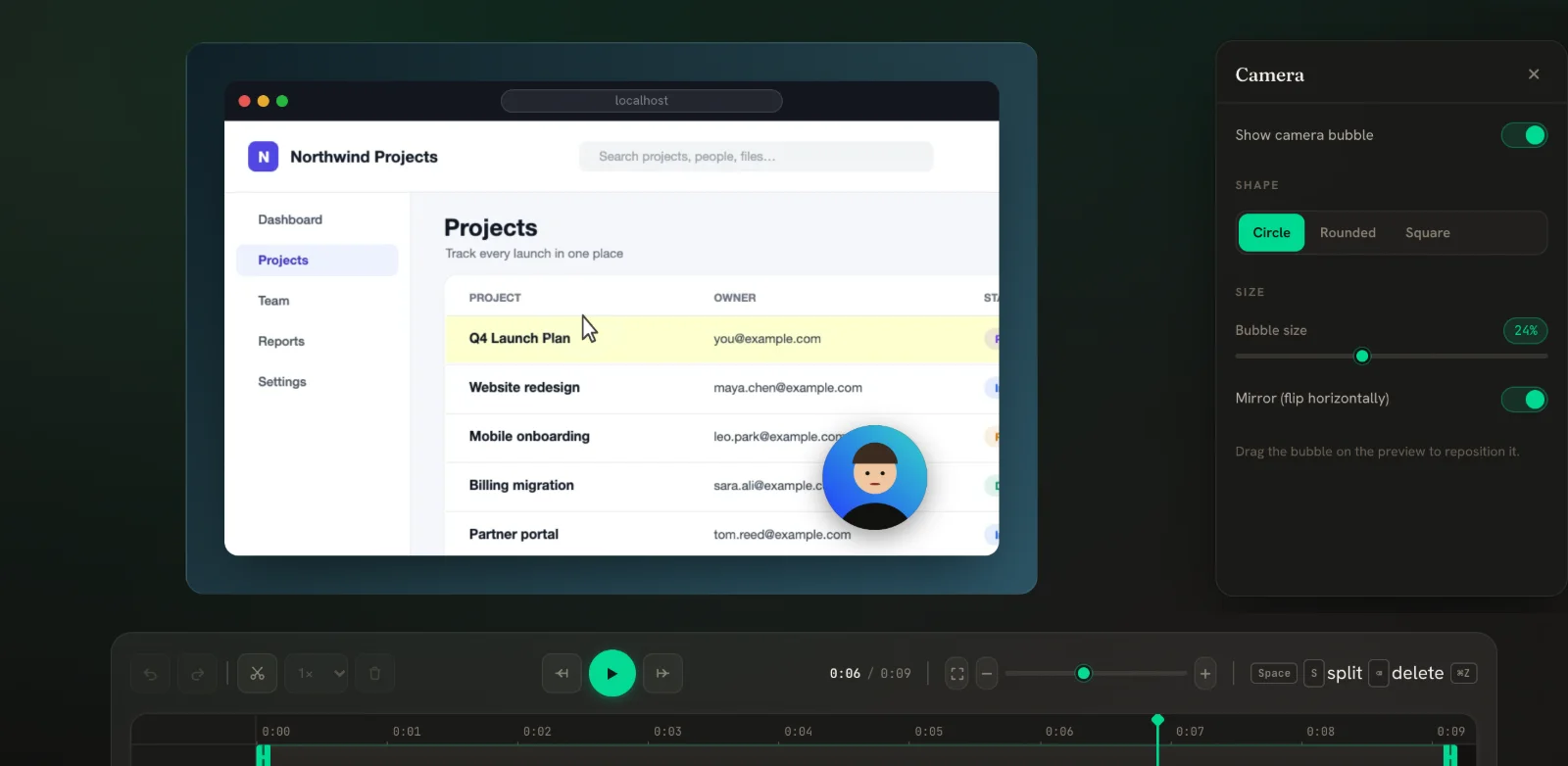
- Show camera bubble — turn the bubble on or off without losing it.
- Shape — Circle, Rounded or Square.
- Bubble size — how large the bubble is relative to the video.
- Mirror (flip horizontally) — on by default so you look the way you see yourself.
Drag the bubble on the preview to move it. Place it over an empty part of the page so it never covers important UI.
When to show your face
A webcam bubble builds trust in sales demos, onboarding videos and async updates to your team, where viewers want to know who is talking. For short feature clips, product-page videos and GIFs, the screen alone is usually cleaner. Because the bubble is stored separately, you don't have to decide before recording: record with the camera on, and turn Show camera bubble off later if the video works better without it.
Look at the camera, not the screen, when you introduce yourself, and keep good light in front of you rather than behind you. A plain wall behind you keeps attention on the product.
Audio tips
- Use a headset or external mic for clearer narration than a laptop microphone.
- Turn Tab Audio off if the page plays notification sounds.
- In the editor, the mute button and the eye icon on the Audio lane silence the audio in the export.
- Parts of the video you speed up are silent by design, so narrate the important parts at normal speed.
Frequently asked questions
The Microphone switch keeps turning off. What do I do?
Chrome hasn't granted access yet. Switch it on, allow the microphone in the tab PapCam opens, then start recording again. See Troubleshooting if the prompt never appears.
Can I move the webcam after recording?
Yes. The bubble is recorded separately, so you can drag it, resize it and change its shape in the Camera panel.
Can I hide the webcam for part of the video?
You can turn Show camera bubble off for the whole video. For one section, trim that part or cover it with an overlay.
Is my voice included in GIF exports?
No. GIFs have no sound. Export MP4 or WebM to keep narration.
Related guides
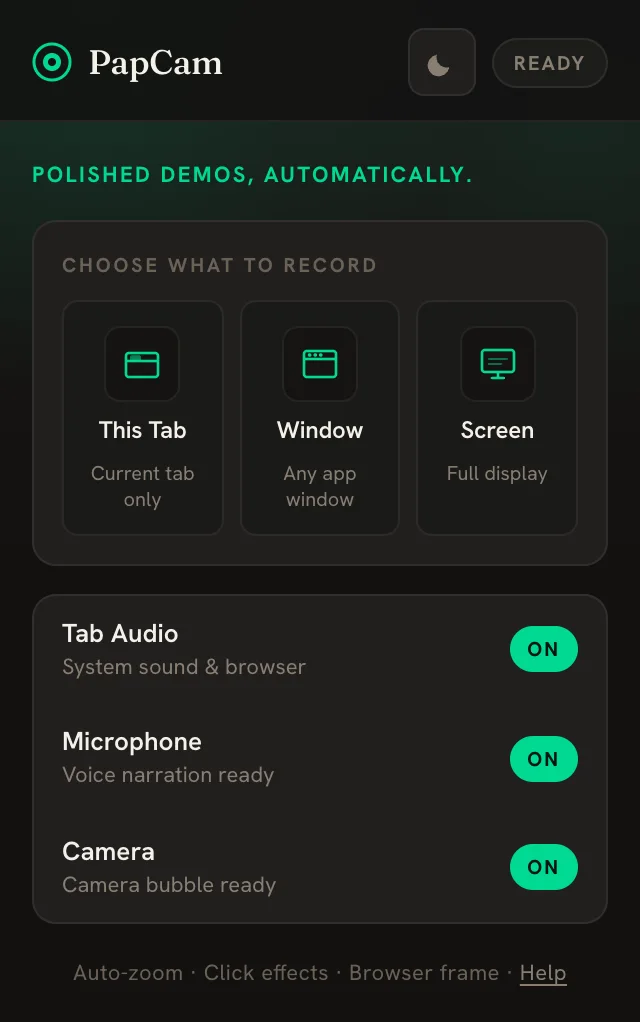 Getting startedInstall the extension, pick a source and record — the editor opens automatically when you stop.
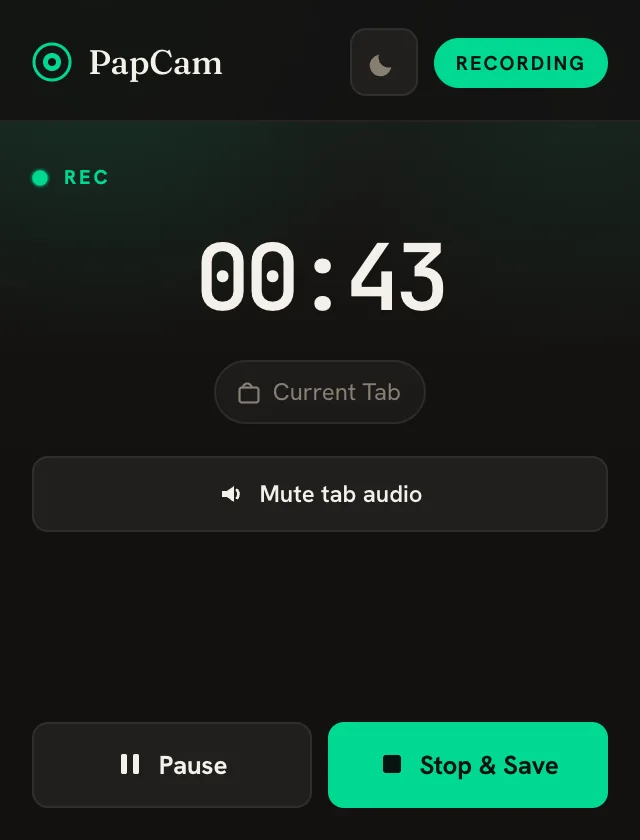 TroubleshootingQuick fixes for permissions, missing sound or zooms, slow exports and save errors.
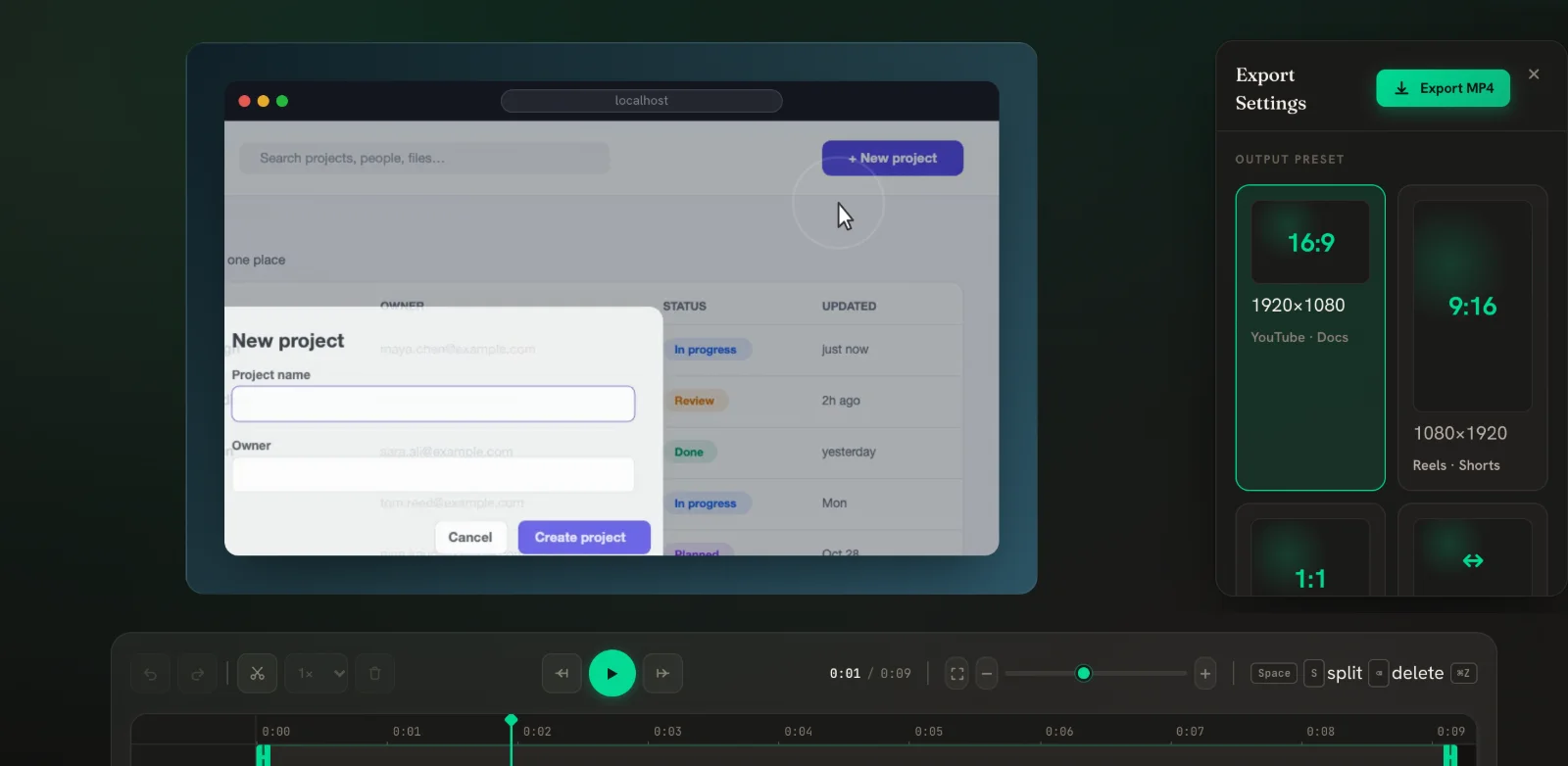 Export MP4, WebM & GIFPick a size for where the video will live, choose a format, and download.