- Home
- Help Center
PapCam Help Center
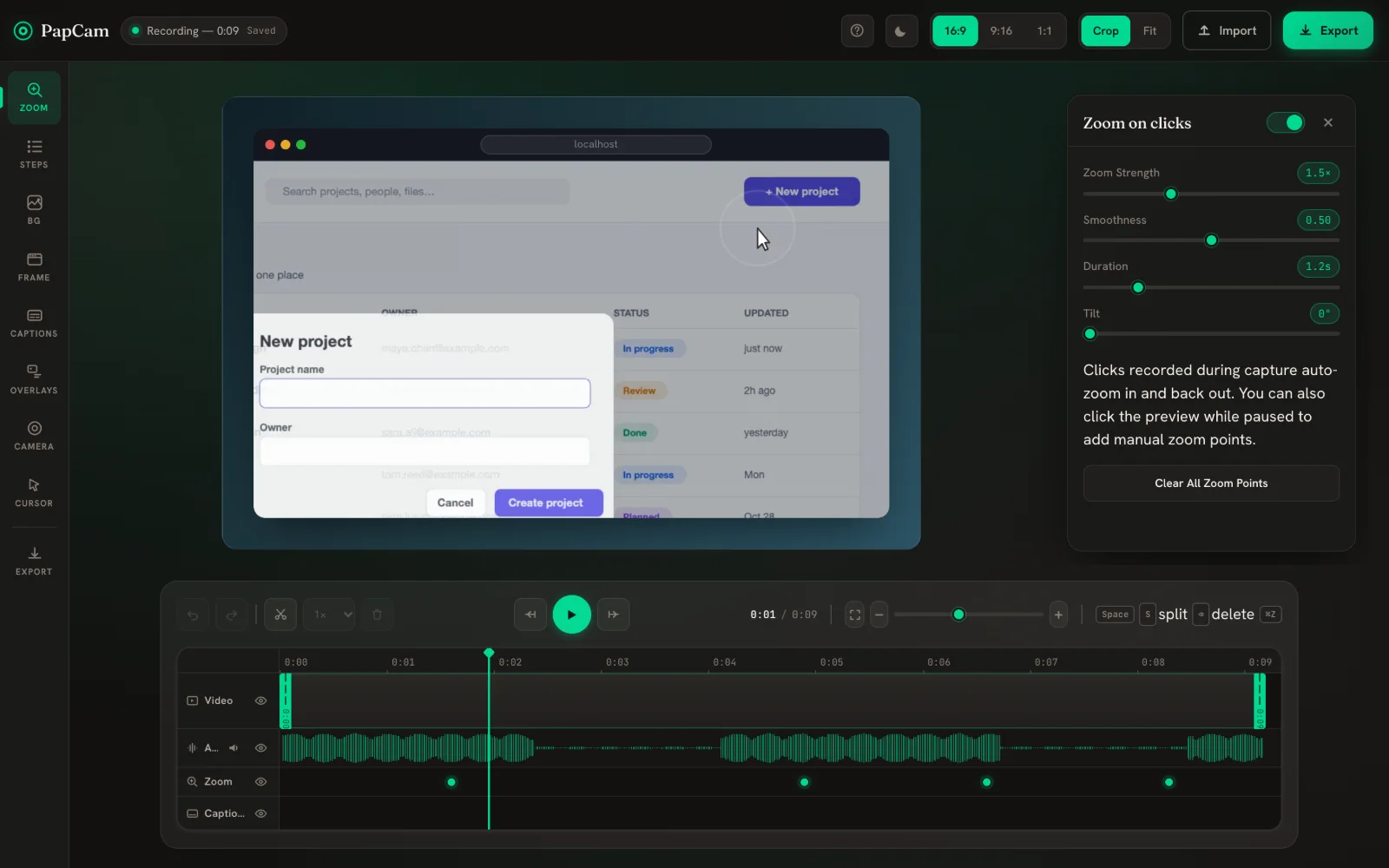
Short, practical guides for every PapCam feature — from your first recording to a polished MP4. Every screenshot here is taken from the real editor.
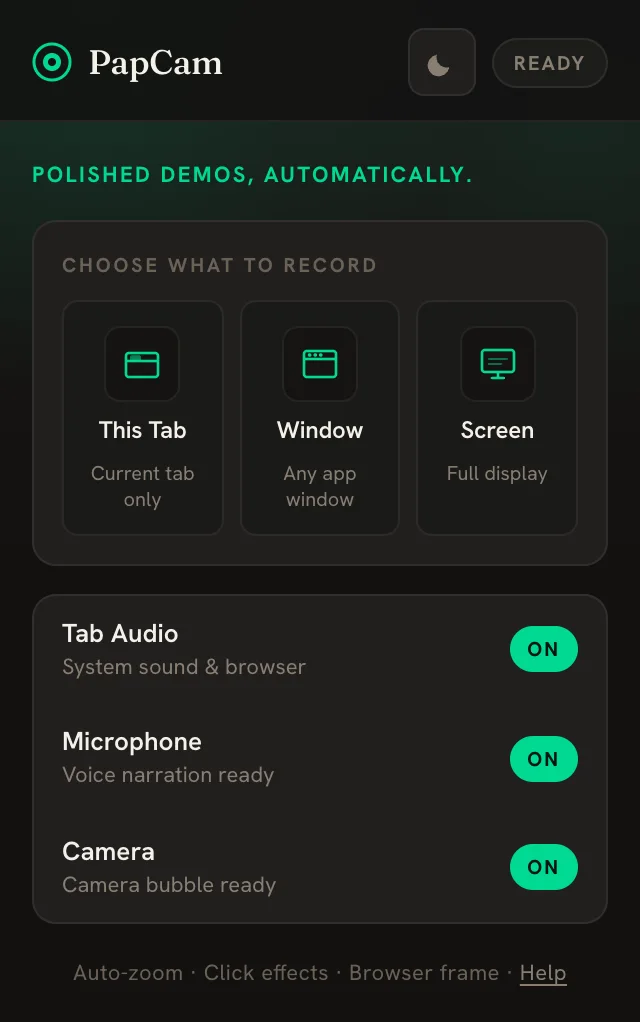
- Pick what to recordClick the PapCam icon and choose This Tab, Window or Screen.
- Record your demoClick around normally. PapCam remembers every click so it can zoom in on it later.
- Polish and exportThe editor opens when you press Stop. Adjust the look, then export MP4, WebM or GIF.
Start here
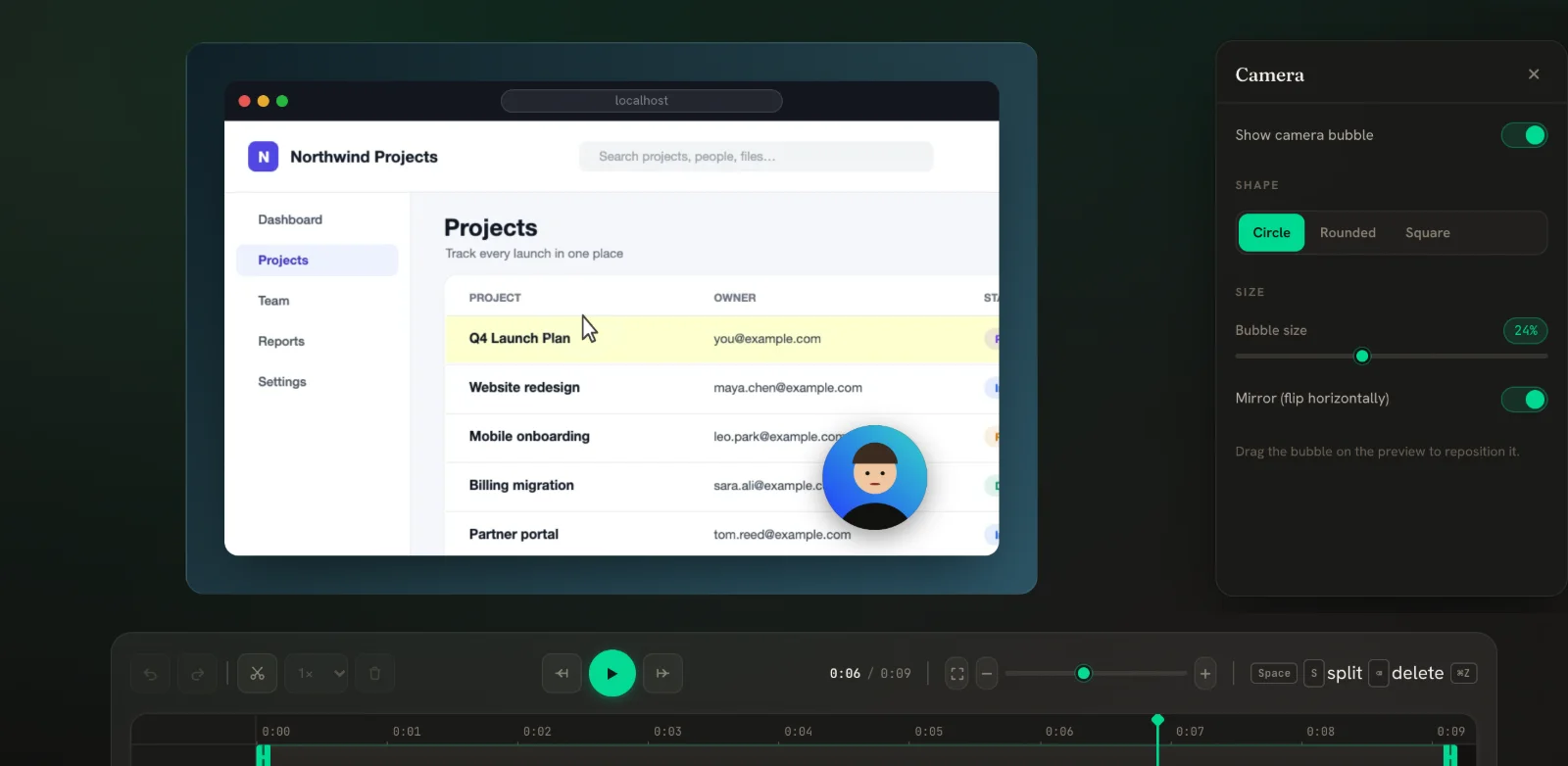
Make it look polished
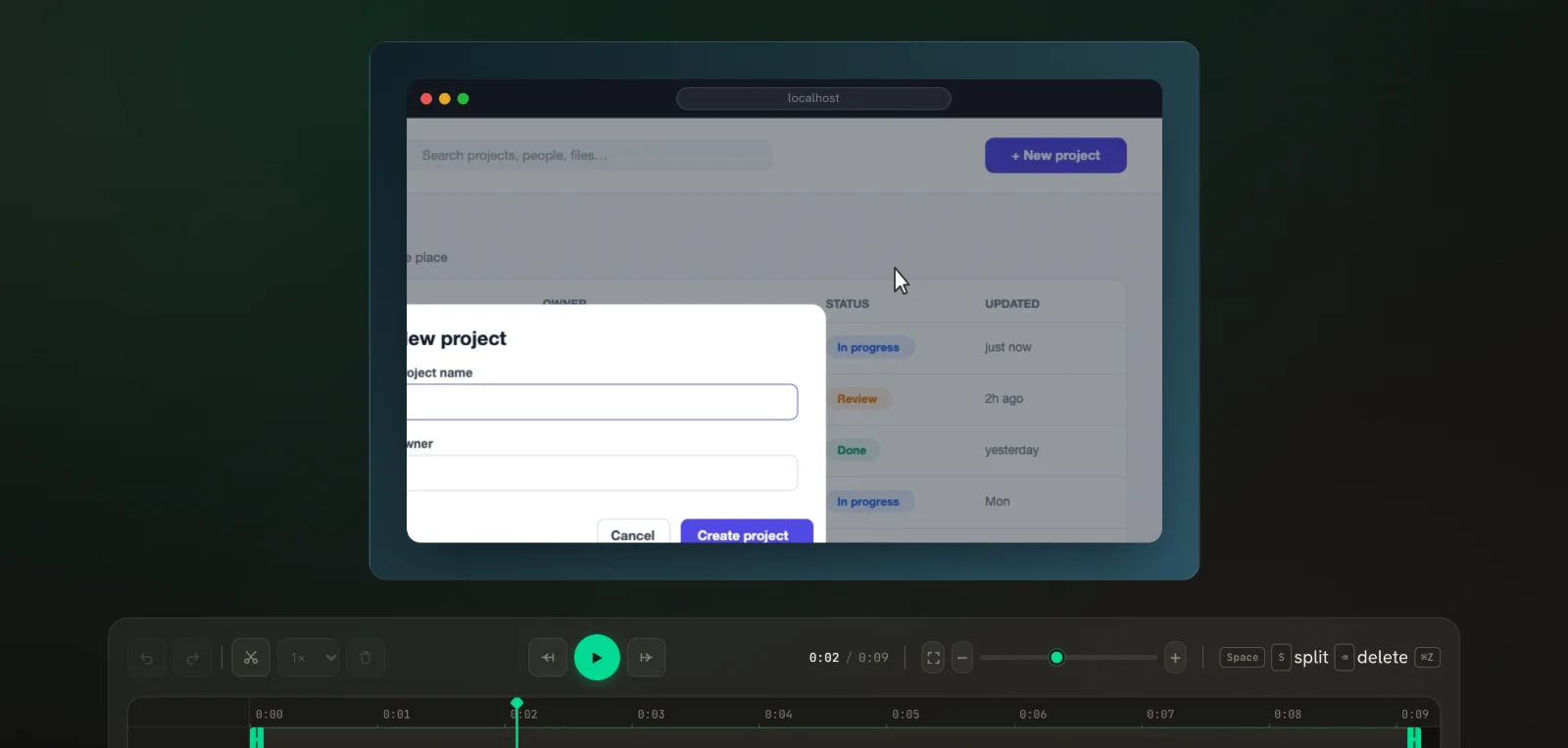 Auto-zoom on clicksPapCam zooms in on every click you made while recording. Tune it, or add zooms by hand.
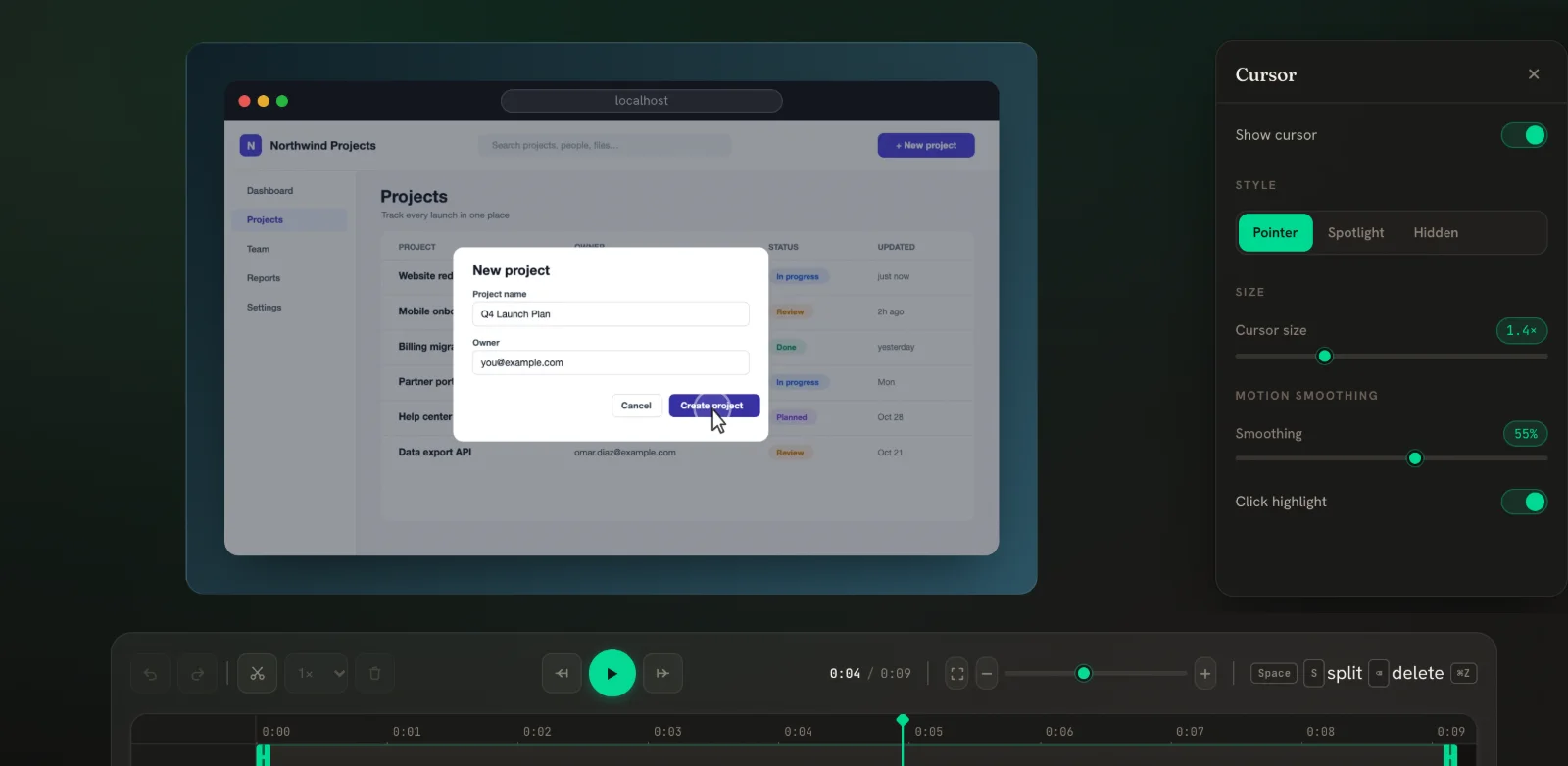 Cursor & click effects New in v0.5A smooth, crisp cursor with a click ring — redrawn from your real mouse path.
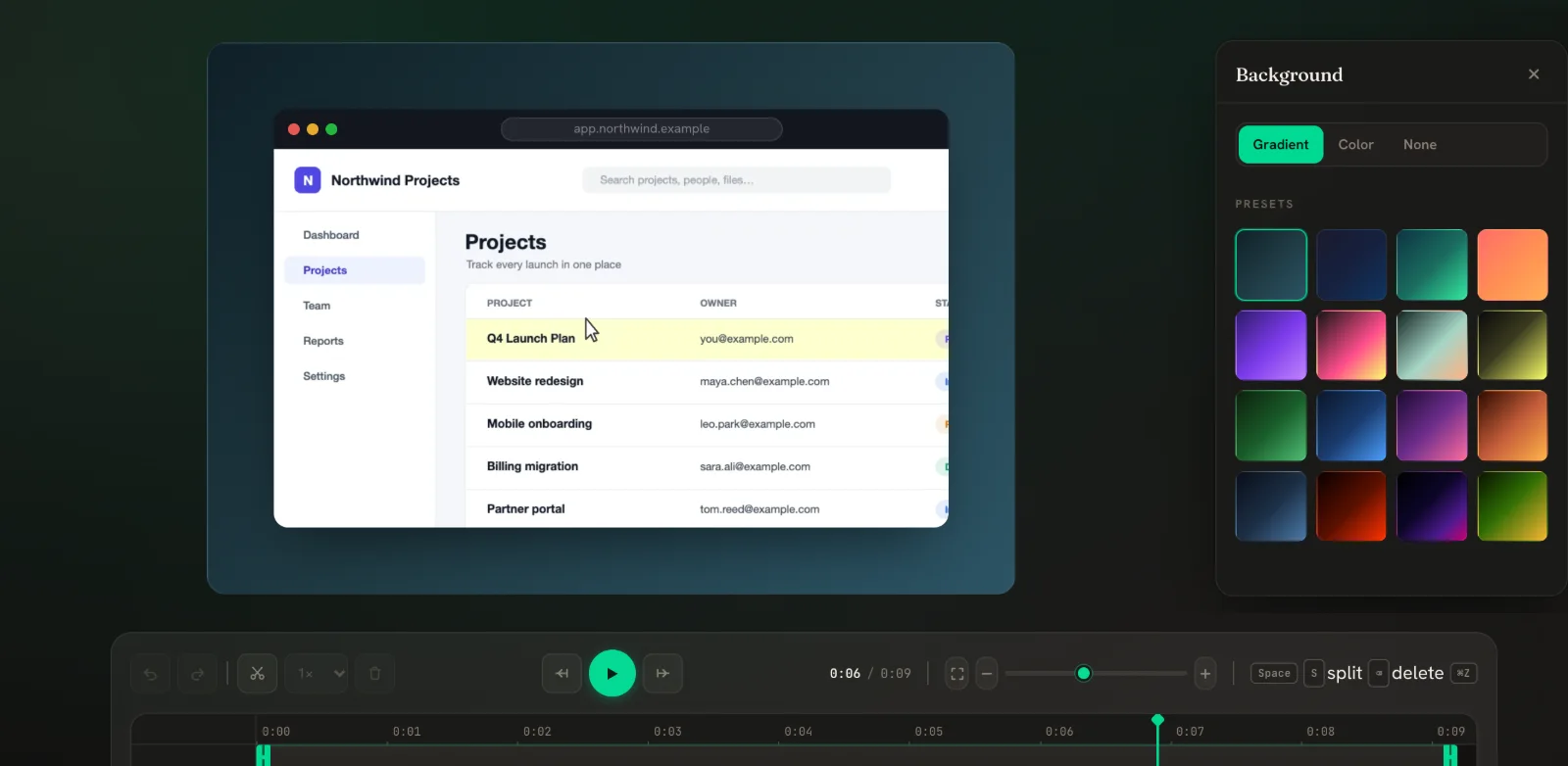 Background & browser frameWrap your recording in a gradient or colour, with a clean browser window around it.
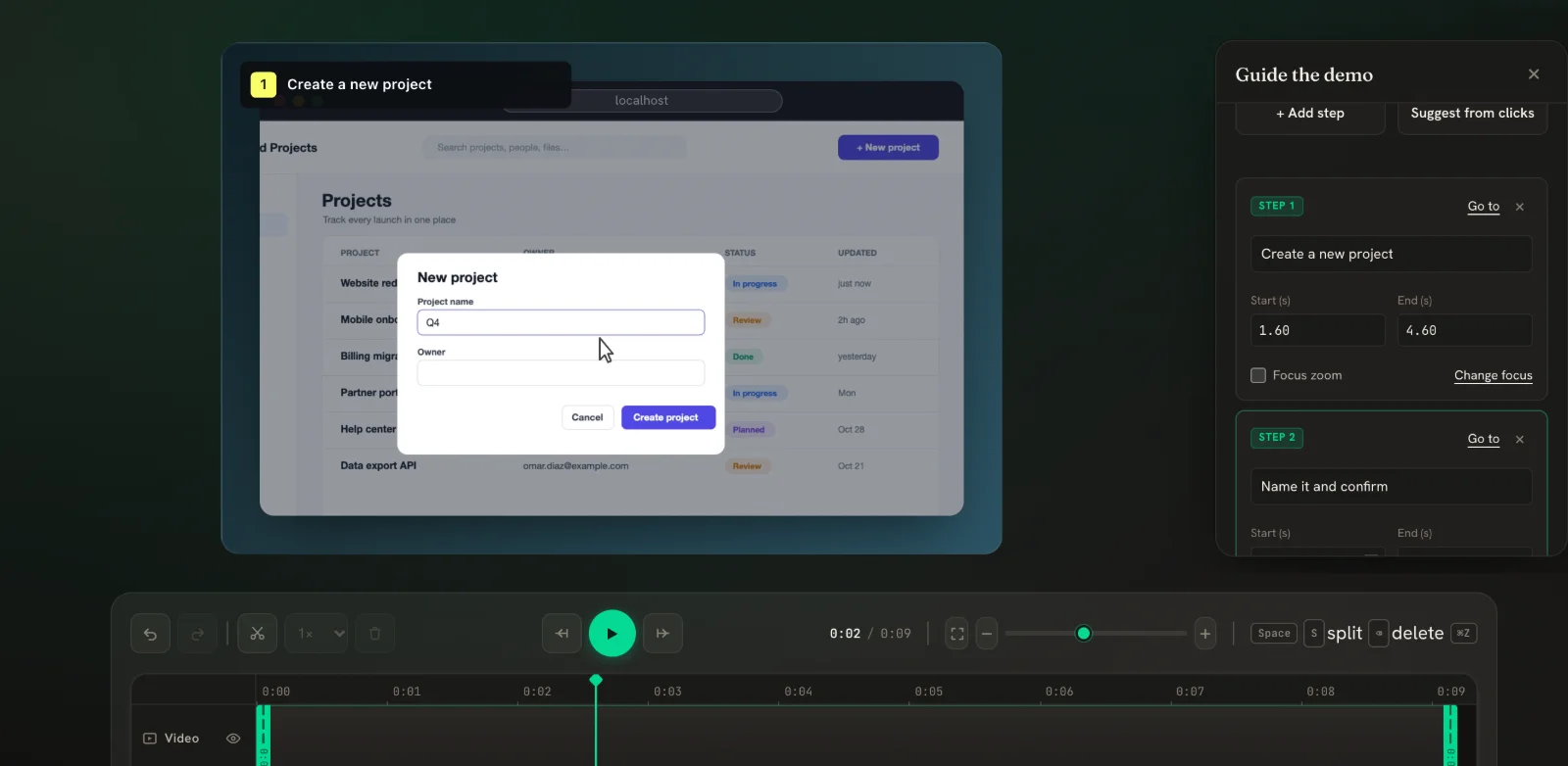 Guided demo steps New in v0.5Add numbered step cards to your video, or let PapCam suggest them from your clicks.
Explain and protect
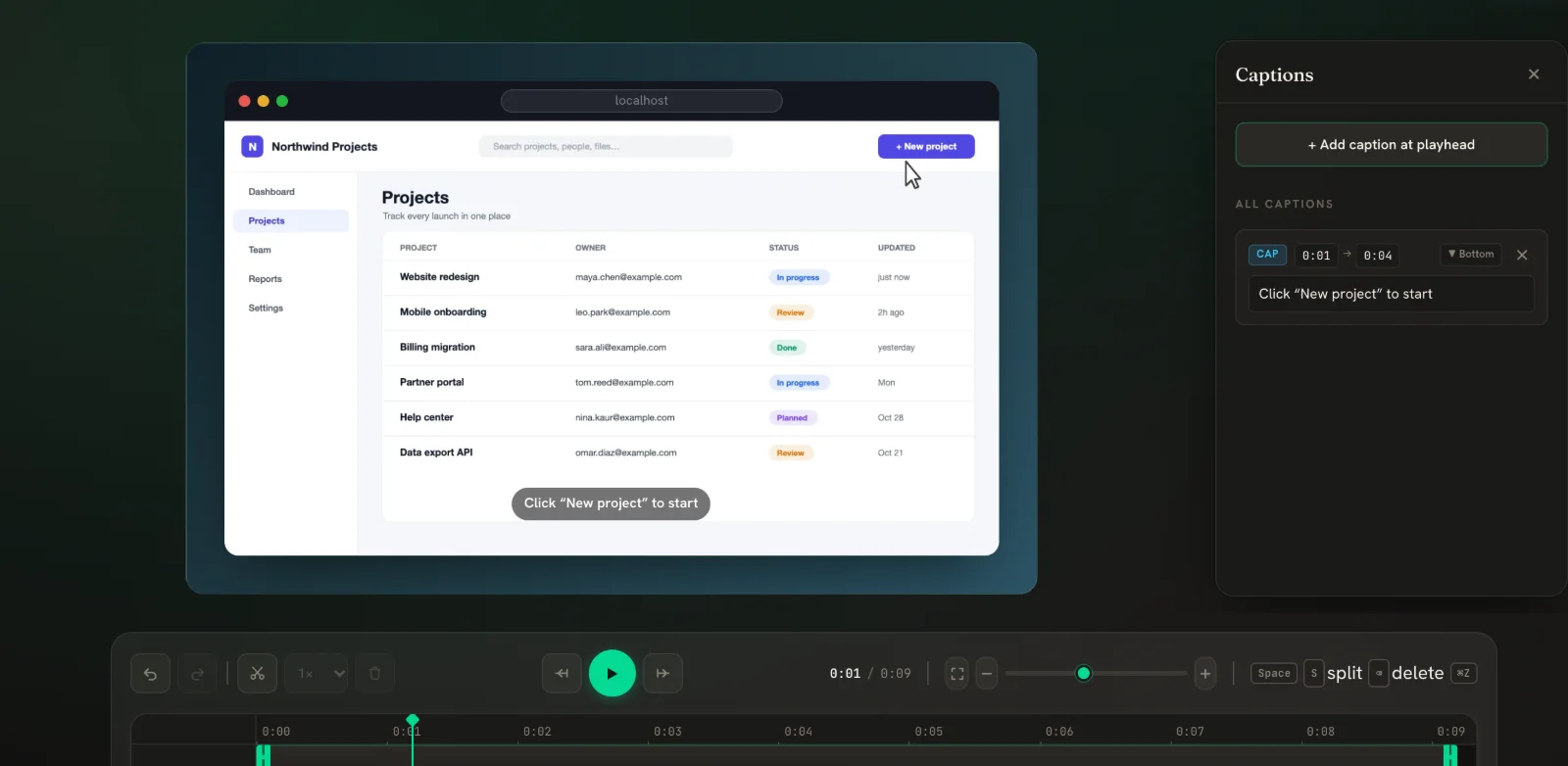
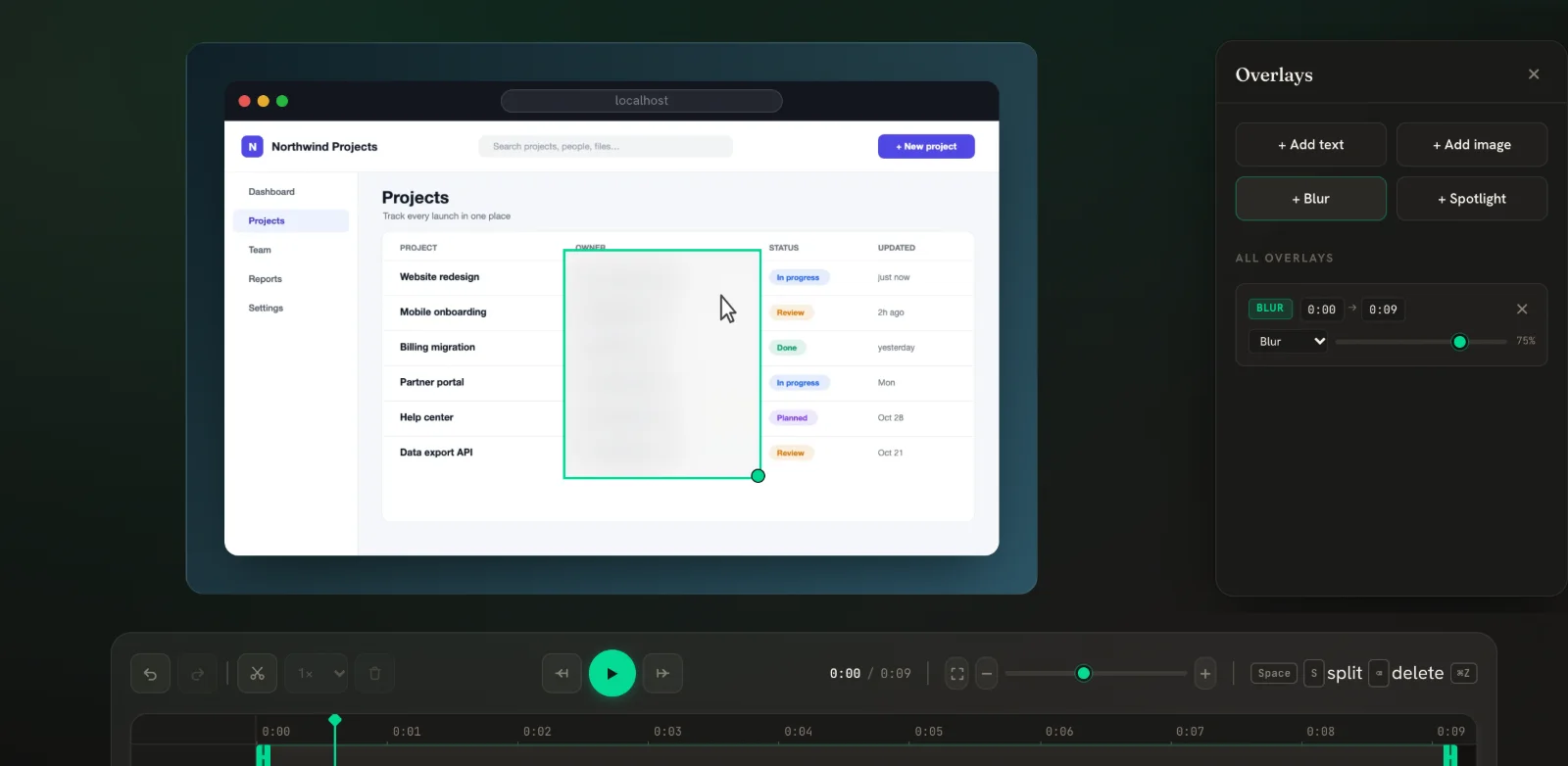
Edit and export
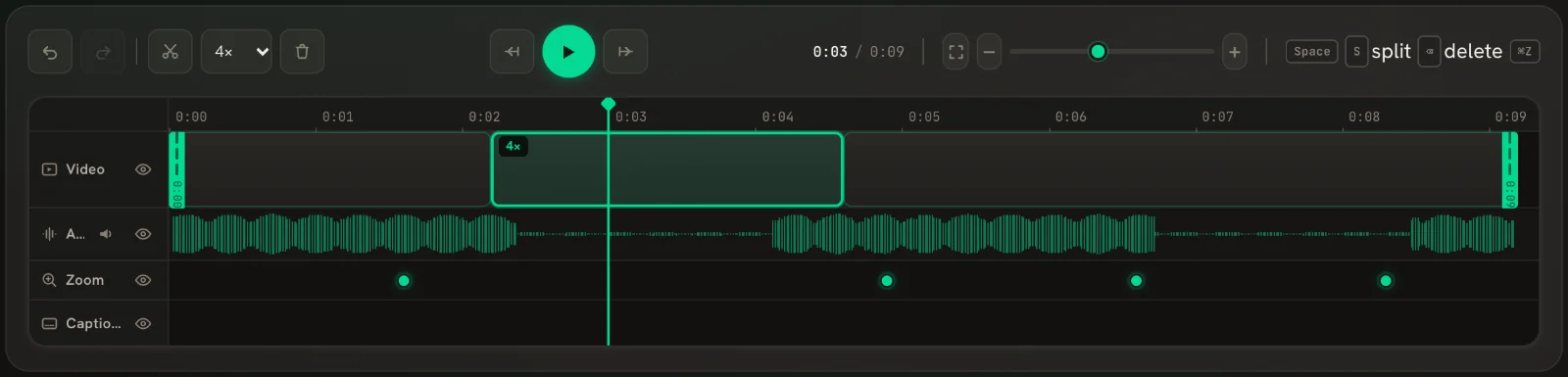
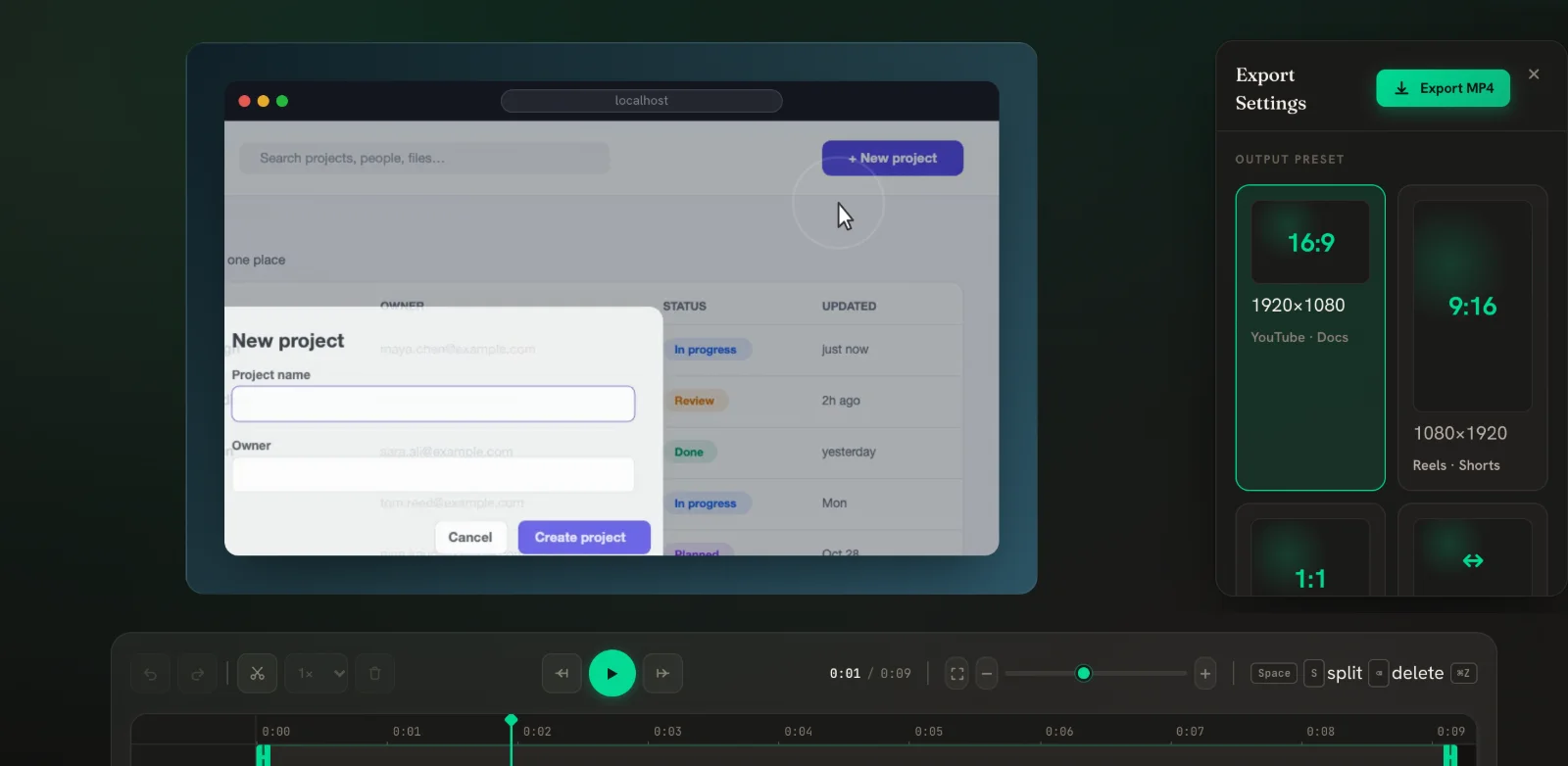
Fix a problem
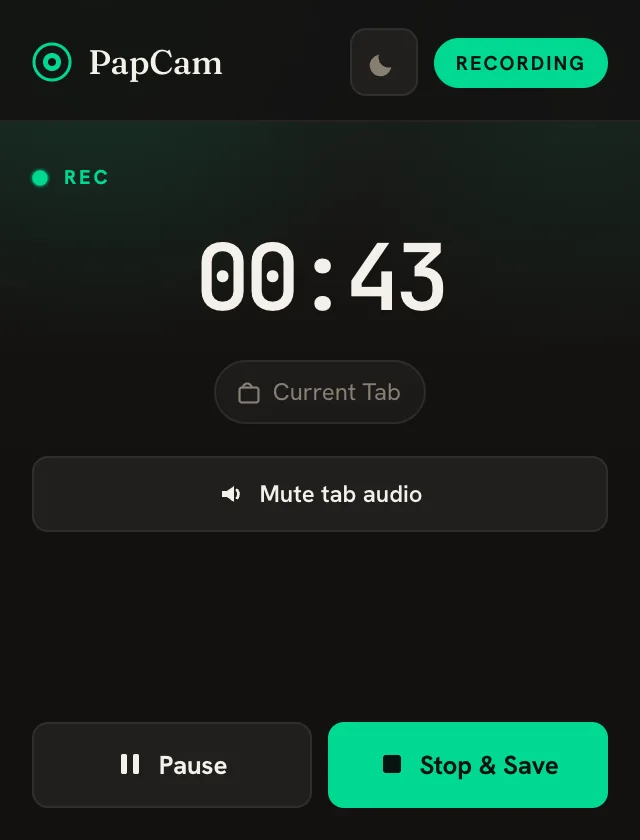
New to PapCam?
Install the free extension and record your first polished demo in a minute.