Many people watch demos with the sound off. Captions and text overlays carry the message anyway. PapCam has two tools: Captions, a subtitle bar at the top or bottom of the video, and Overlays, freely placed text or images.
Add captions
- Move the playhead to where the caption should appear.
- Open the Captions panel and click + Add caption at playhead. The caption lasts three seconds by default.
- Type the text in the caption card. Adjust the start and end time, and choose whether it sits at the top or bottom.
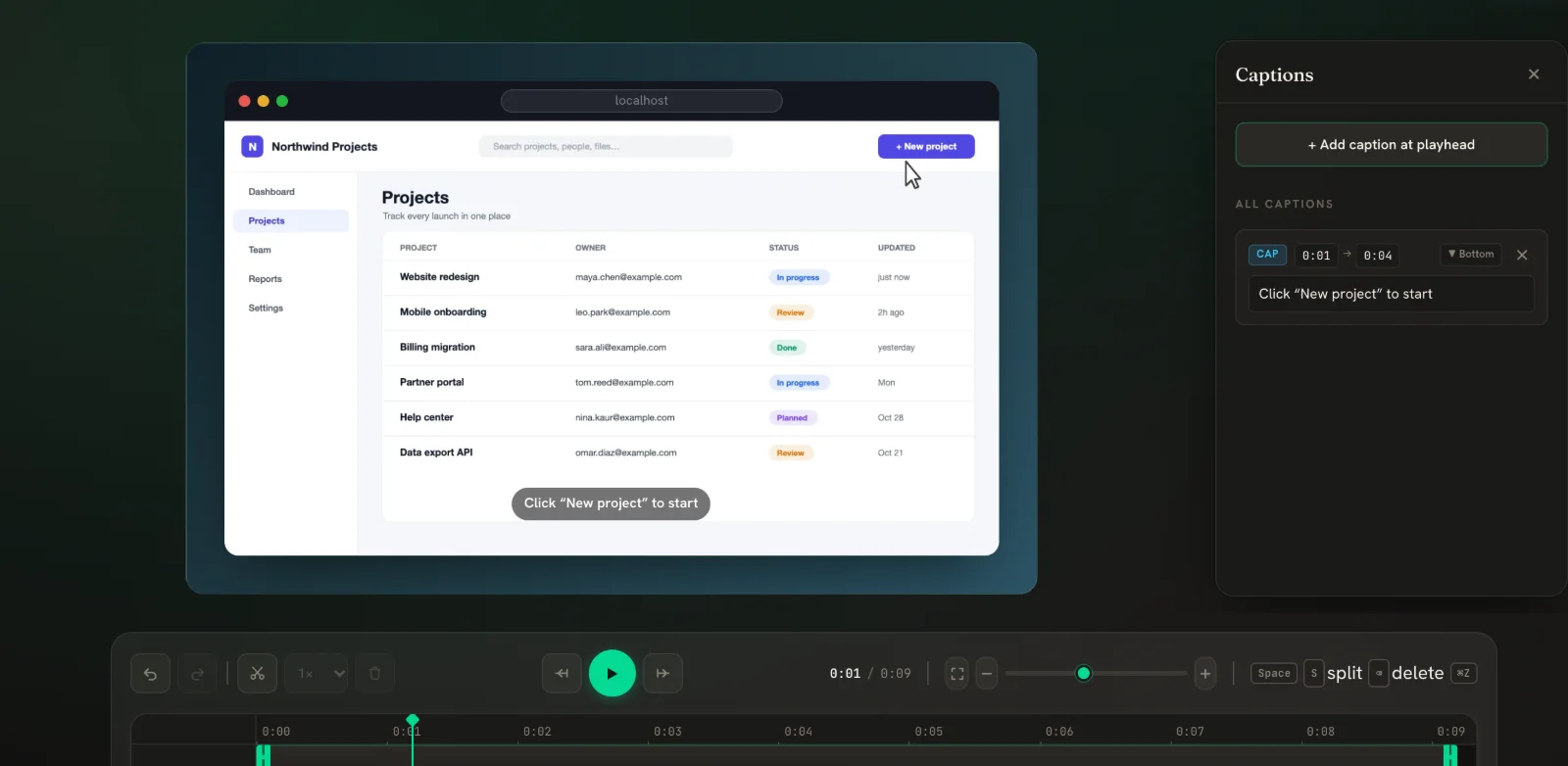
All captions are listed under All captions and shown on the Captions lane of the timeline. Click a caption on the lane to open the panel.
Add a text overlay
- Open the Overlays panel and click + Add text.
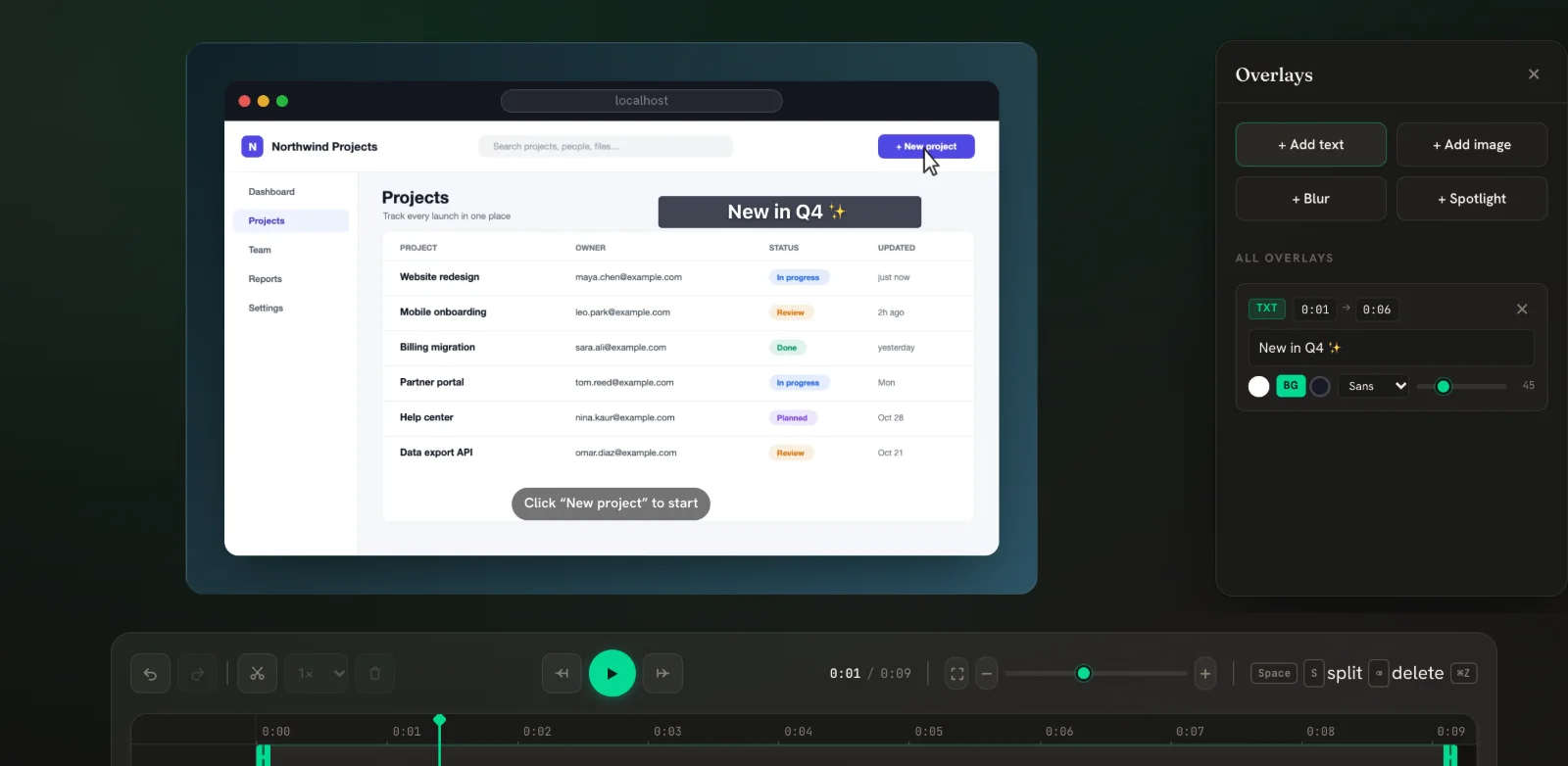
- Drag the text box on the preview to place it; drag the corner handle to resize it.
- In its card, edit the words, then set the colour, an optional background (the BG button), the font (Sans, Serif, Mono or Display) and the size.
- Set when it starts and ends with the two time fields.
Add an image overlay
Click + Add image to place a logo, a sticker or an arrow graphic. Drag it into place and use the Scale slider in its card. PNGs with transparency look best.
Writing captions people actually read
Viewers read captions while watching the screen, so every word competes with the product for attention. Lead with the action ("Invite your team"), keep each caption on screen long enough to read twice, and avoid repeating what is obvious from the video. Put captions at the top when the important part of the page is at the bottom, so the subtitle bar never hides it.
Captions also make your video accessible to viewers who are deaf or hard of hearing, and they help on social platforms where videos auto-play muted.
Tips
- Keep captions to one short sentence; split longer explanations into several captions.
- Use overlays for labels ("Step 2: invite your team") and captions for narration.
- Need to hide something instead of label it? Use Blur and Spotlight in the same Overlays panel.
Frequently asked questions
Can PapCam write captions automatically?
Not yet. Captions are typed manually so you control the exact wording.
Can I move captions anywhere?
Captions sit at the top or bottom. For text anywhere on the video, use a text overlay.
Do overlays move when the video zooms?
Text and image overlays stay where you placed them on the frame. Blur and spotlight regions follow the zoom instead.
Are captions burned into the export?
Yes. Captions and overlays are drawn into the exported video.
Related guides
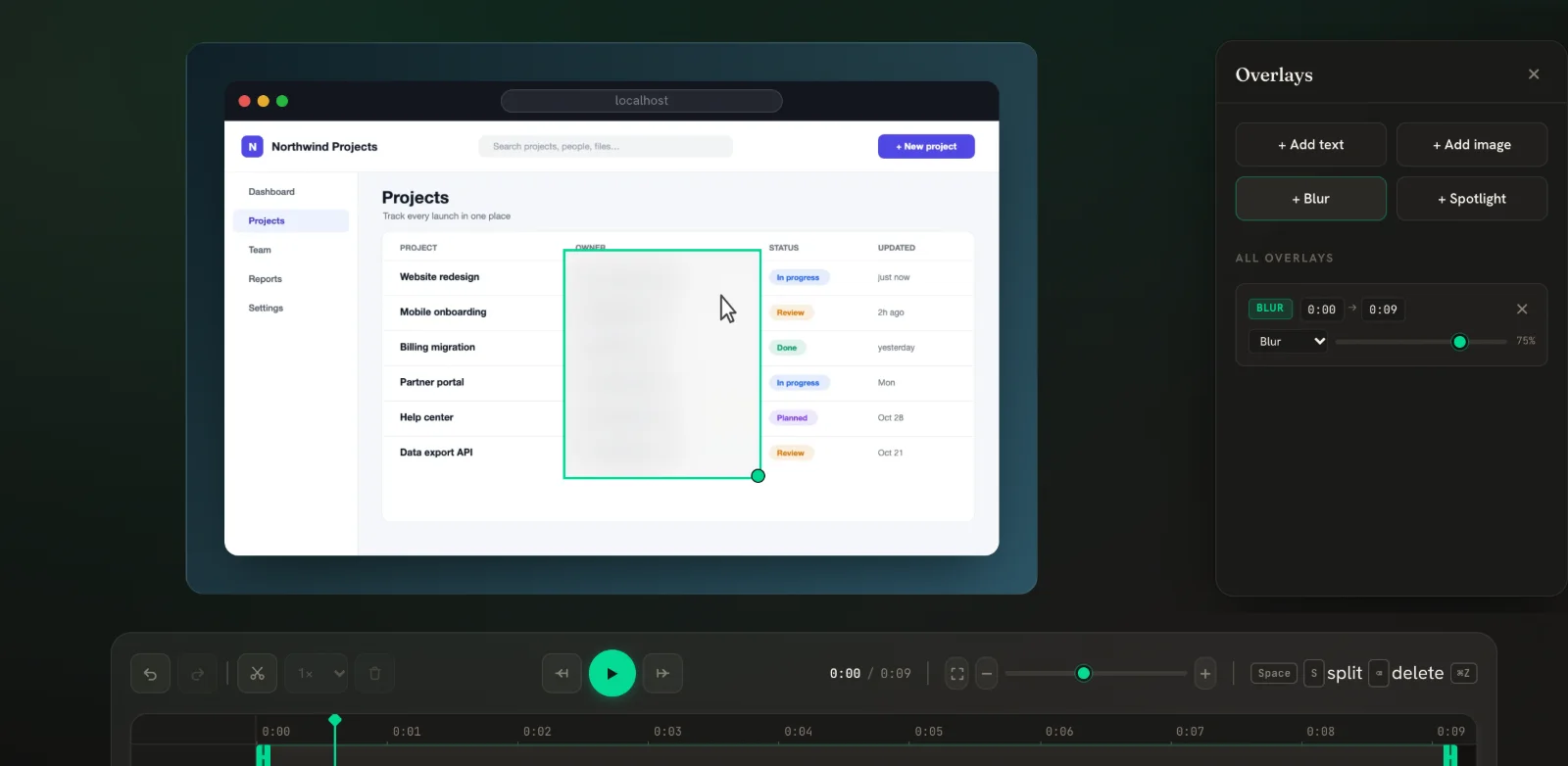 Blur & spotlight New in v0.5Blur emails and keys, or dim everything except one area. Regions stay put even when the video zooms.
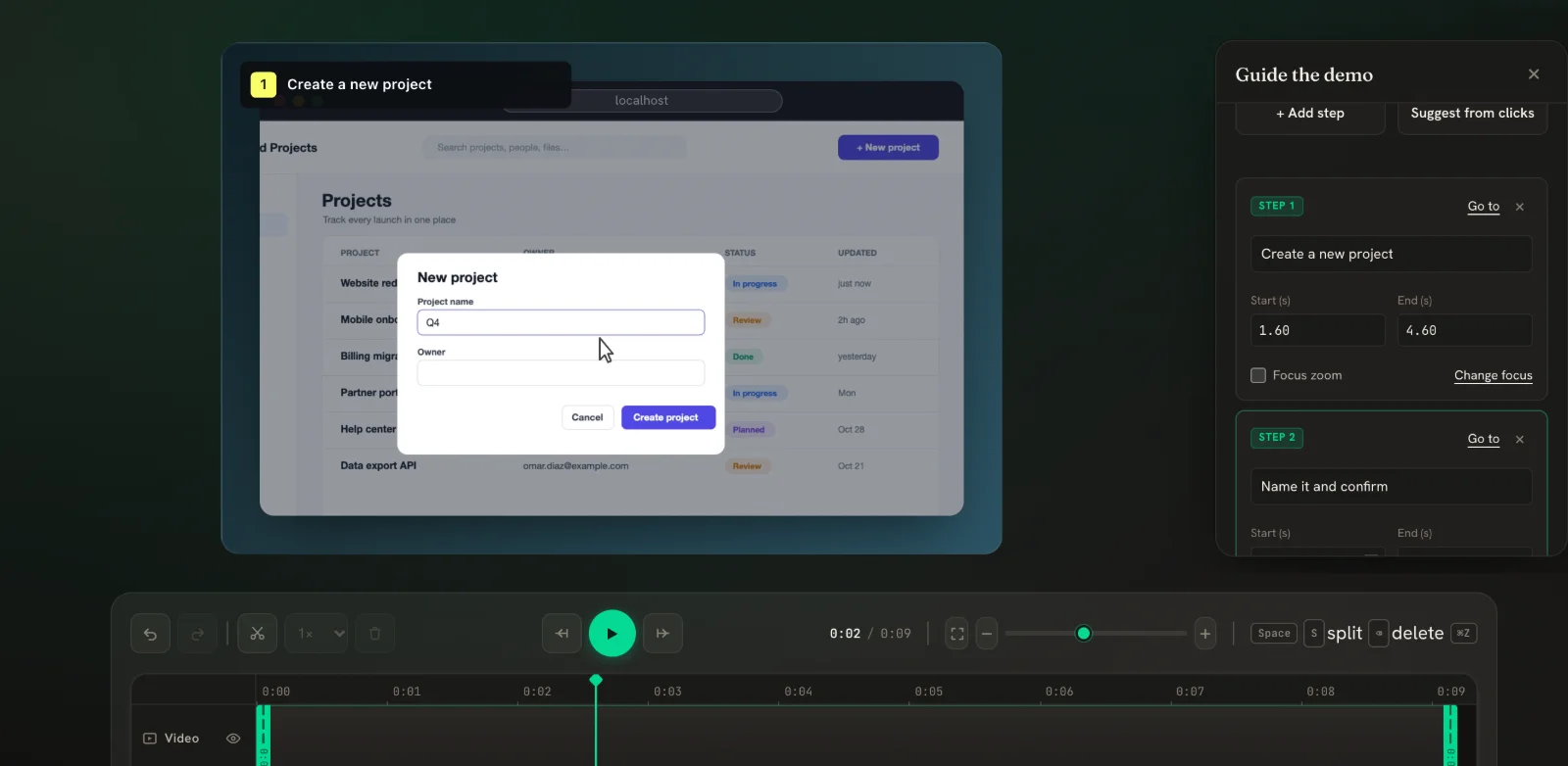 Guided demo steps New in v0.5Add numbered step cards to your video, or let PapCam suggest them from your clicks.
 Export MP4, WebM & GIFPick a size for where the video will live, choose a format, and download.