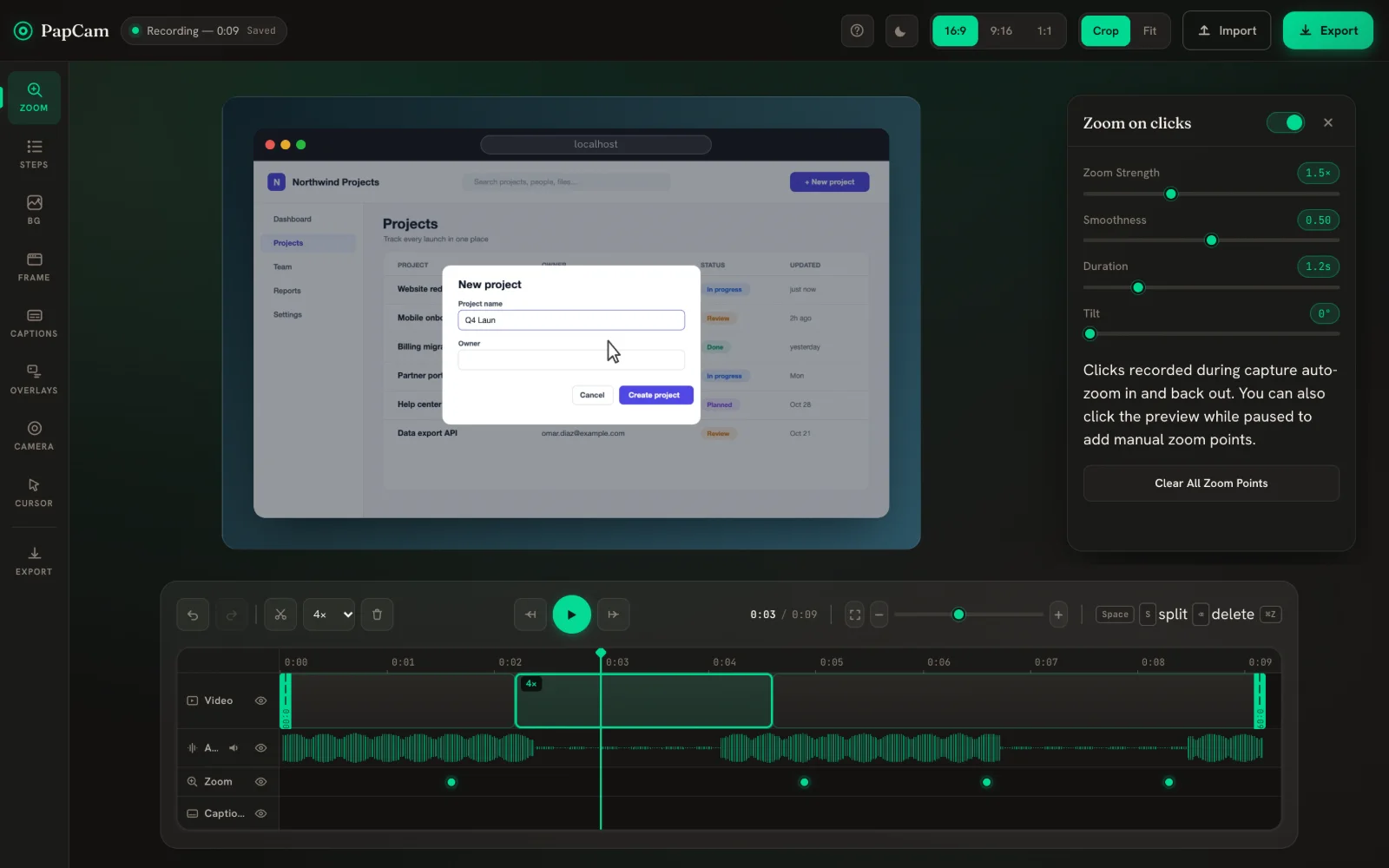
Every recording has a slow start, a mistake or a loading spinner. The timeline at the bottom of the editor lets you cut those parts and speed up the rest, without leaving PapCam.
Trim the start and end
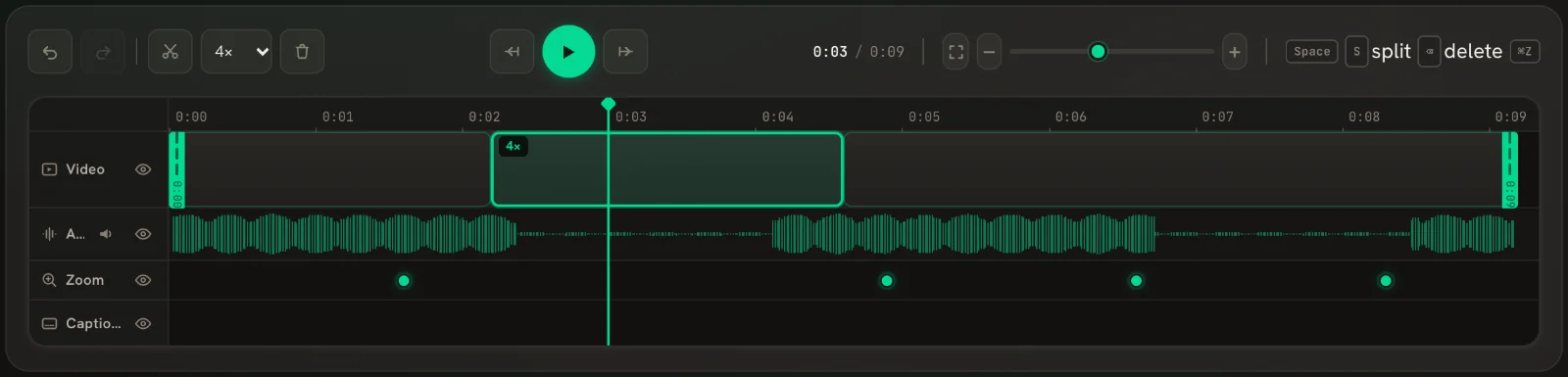
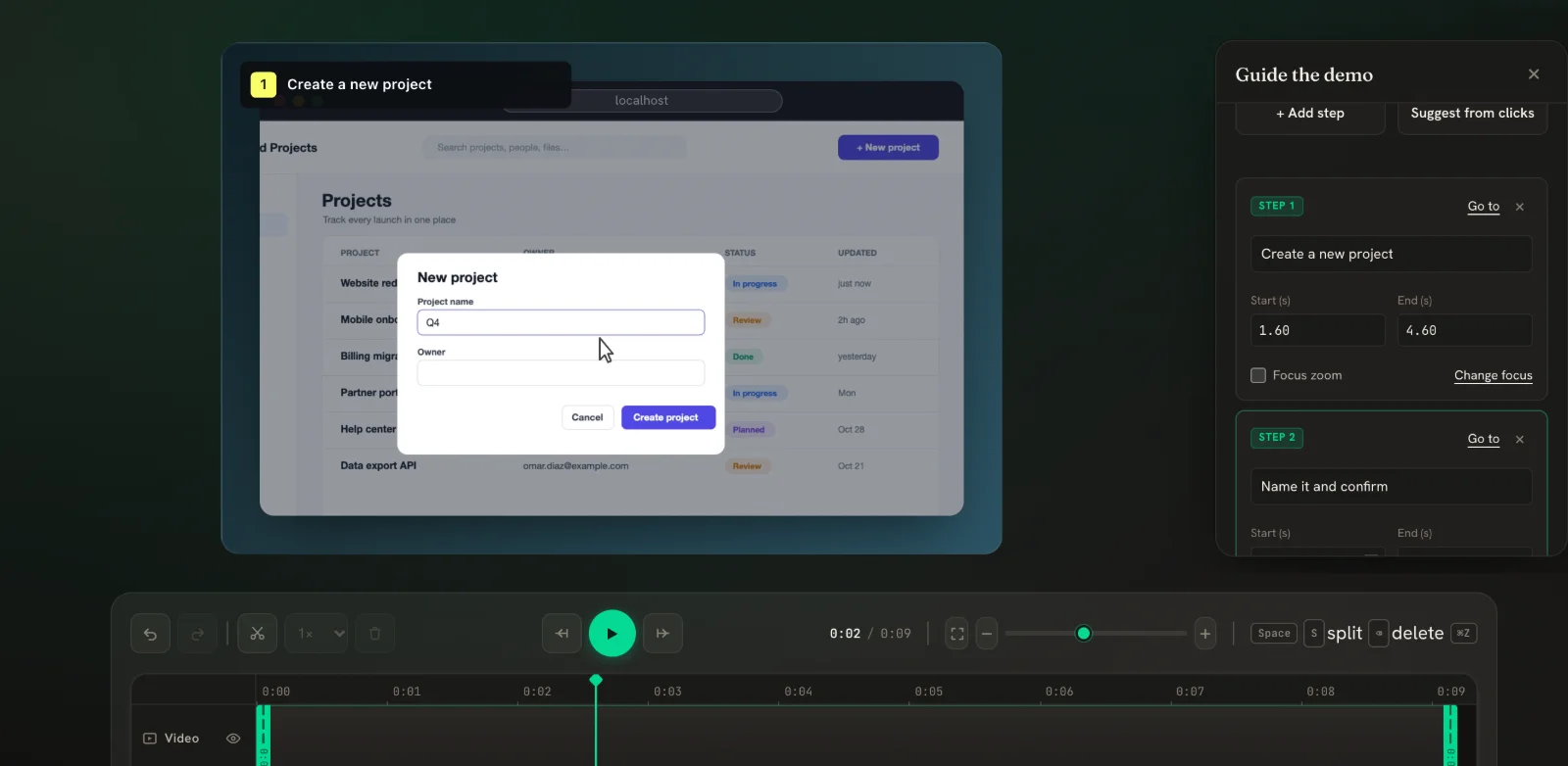
The green handles at both ends of the Video lane mark what is kept. Drag the left handle to cut the beginning and the right handle to cut the ending. The cut-off parts are shaded and won't be exported.
Split and delete a section
- Move the playhead to where the unwanted part starts and press S (or click the scissors button). Do the same where it ends.
- Click the segment in between to select it.
- Press Delete or click the trash button. Playback and export skip the gap automatically.
Drag the edges of any segment to fine-tune a cut.
Speed up slow parts New in v0.5
- Split around the slow part — a page loading, a long form being filled in.
- Select that segment.
- Choose 1.5×, 2× or 4× in the speed menu next to the scissors. The segment gets a striped pattern and a speed tag.
Sped-up segments are silent, in the preview and in every export. That avoids chipmunk-style voices — keep narration in normal-speed parts. Splitting a fast segment keeps the speed on both halves.
A fast editing workflow
Watch the recording once at normal speed and press S every time something should change: before and after a mistake, before and after a loading screen. Then go back through the segments: delete the mistakes, set the waiting parts to 2× or 4×, and leave the rest alone. Most demos are done in a couple of minutes this way.
Undo anything
Every edit can be undone with ⌘/Ctrl + Z and redone with ⌘/Ctrl + Shift + Z, or with the arrow buttons at the left of the toolbar.
Timeline lanes
Below the video you see the Audio, Zoom, Captions and Steps lanes. Click the eye icon on a lane to hide it; hiding the Audio lane also silences the export. Use the timeline zoom buttons to see more detail.
Keyboard shortcuts
| Key | Action |
|---|---|
| Space | Play / pause |
| S | Split at the playhead |
| Delete | Delete the selected segment |
| J / L | Back / forward 5 seconds |
| K | Pause |
| ← / → | Step 1 second (hold Shift for 5) |
| ⌘/Ctrl + Z | Undo (add Shift to redo) |
Frequently asked questions
Does trimming delete my original recording?
No. Cuts only change what is played and exported. Drag a handle back to restore footage.
Why is the sped-up part silent?
By design: fast audio sounds unnatural, so PapCam mutes sped-up segments in the preview and in exports.
Can I set different speeds for different parts?
Yes. Each segment has its own speed.
Do zooms and captions stay in sync after cuts?
Yes. They are tied to the original timing, so they stay on the right moment.
Related guides
 Export MP4, WebM & GIFPick a size for where the video will live, choose a format, and download.
 Auto-zoom on clicksPapCam zooms in on every click you made while recording. Tune it, or add zooms by hand.
 Guided demo steps New in v0.5Add numbered step cards to your video, or let PapCam suggest them from your clicks.