Chrome's tab capture doesn't include your mouse pointer, so a raw tab recording has no cursor at all. PapCam records your mouse path while you record This Tab and draws a clean cursor back on top — smoothed so it glides instead of jittering, and kept in place during zooms.
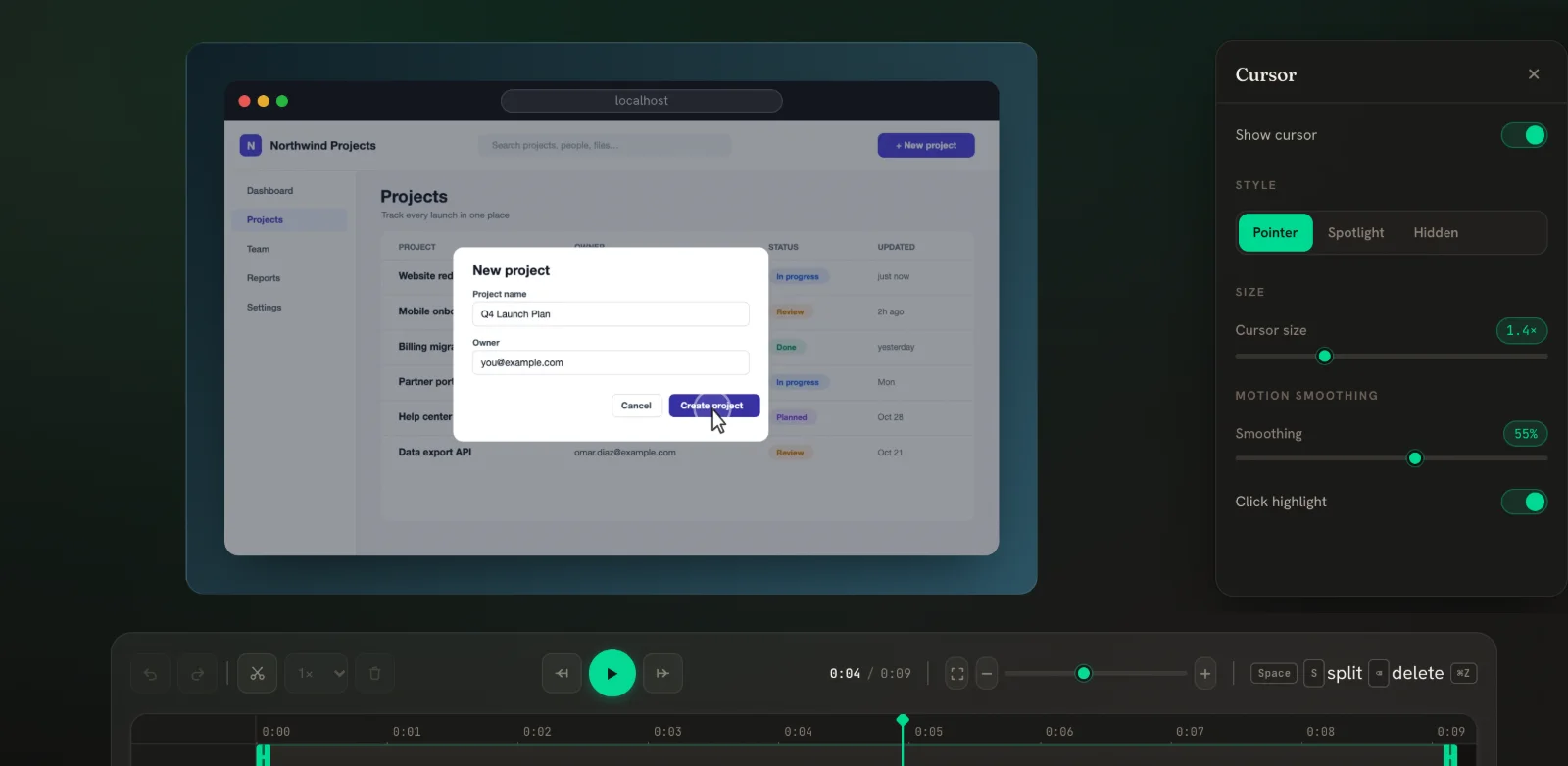
Set up the cursor
- Open the Cursor panel from the sidebar and make sure Show cursor is on.
- Choose a Style: Pointer (a classic arrow), Spotlight (a soft glowing dot) or Hidden.
- Use Cursor size to make it easier to follow, especially in vertical or downscaled exports.
- Set Smoothing under Motion. Higher smoothing turns shaky hand movements into calm, deliberate motion.
- Turn on Click highlight to show a ring and a slight press each time you clicked.
When to use which style
- Pointer for software tutorials where viewers expect a normal cursor.
- Spotlight for marketing videos and presentations — it reads as "look here" rather than "click here".
- Hidden when the cursor is distracting, for example in a scrolling showcase.
Make the cursor easy to follow
- Move the mouse slower than you normally would while recording. Smoothing hides jitter, but it can't make a fast flick readable.
- Rest the pointer near what you are talking about instead of parking it in a corner.
- Raise Cursor size for 9:16 and GIF exports, which are viewed smaller.
- Keep Click highlight on for tutorials: the ring tells viewers a click happened even when the page barely changes.
The cursor follows auto-zoom: when the view zooms in, the pointer stays on the same spot in the page, so it never drifts away from the button it is pointing at.
Good to know
The cursor needs the recorded mouse path, which only exists for This Tab recordings. Window and Screen recordings usually contain your real pointer already, so for those (and for imported videos) the Cursor panel shows a short note instead of the controls.
Click highlights use the same click times as auto-zoom. If you delete a zoom point, its click ring goes too.
Frequently asked questions
Why doesn't my tab recording show a mouse pointer?
Chrome's tab capture leaves the pointer out. Turn on Show cursor in the Cursor panel and PapCam draws it back from your recorded mouse path.
Can I make the cursor bigger?
Yes. Use the Cursor size slider; bigger cursors are easier to follow on phones.
Is the cursor in the exported video?
Yes. The rendered cursor and click highlights are included in MP4, WebM and GIF.
Why are the cursor controls missing?
The recording has no mouse path — it was a Window, Screen or imported recording.
Related guides
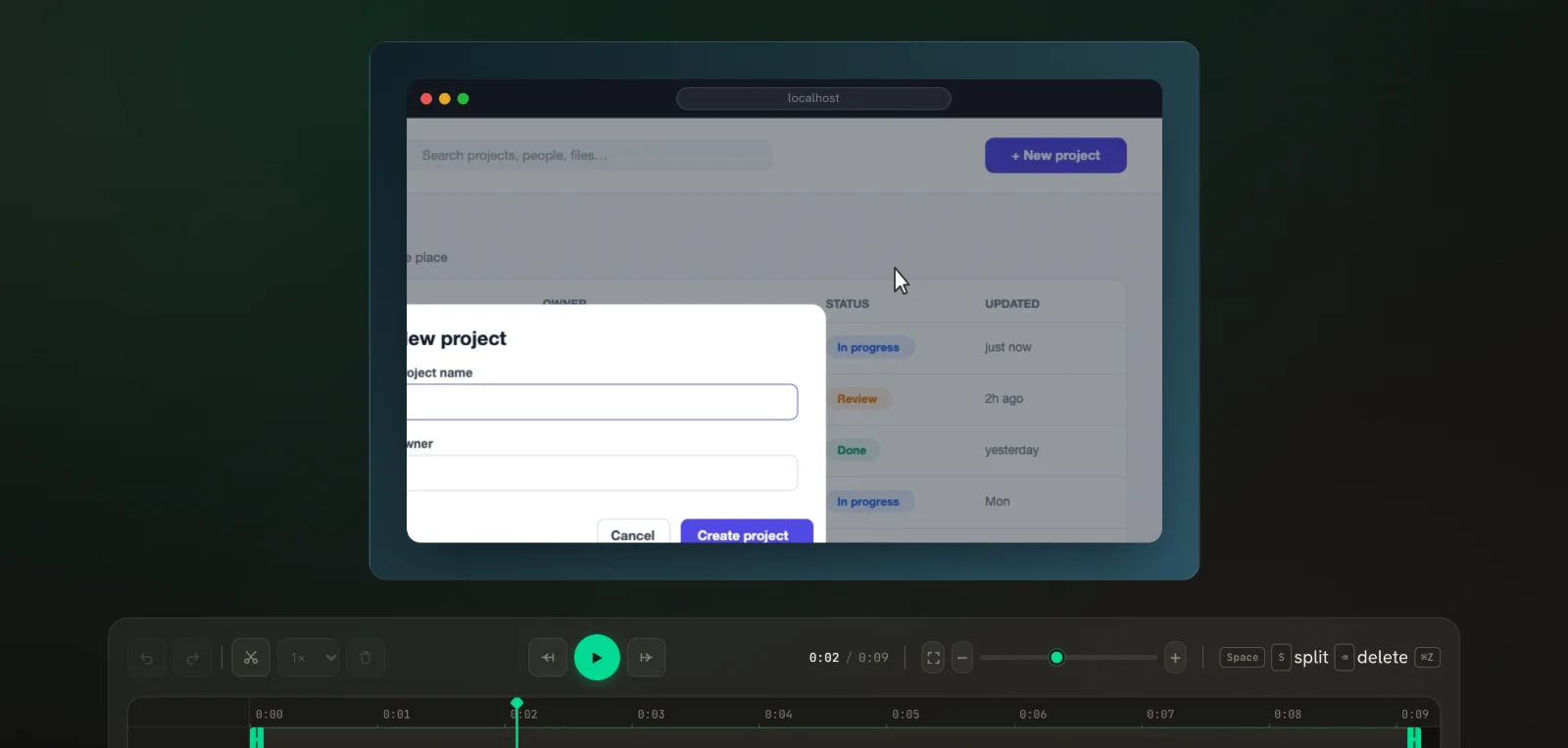 Auto-zoom on clicksPapCam zooms in on every click you made while recording. Tune it, or add zooms by hand.
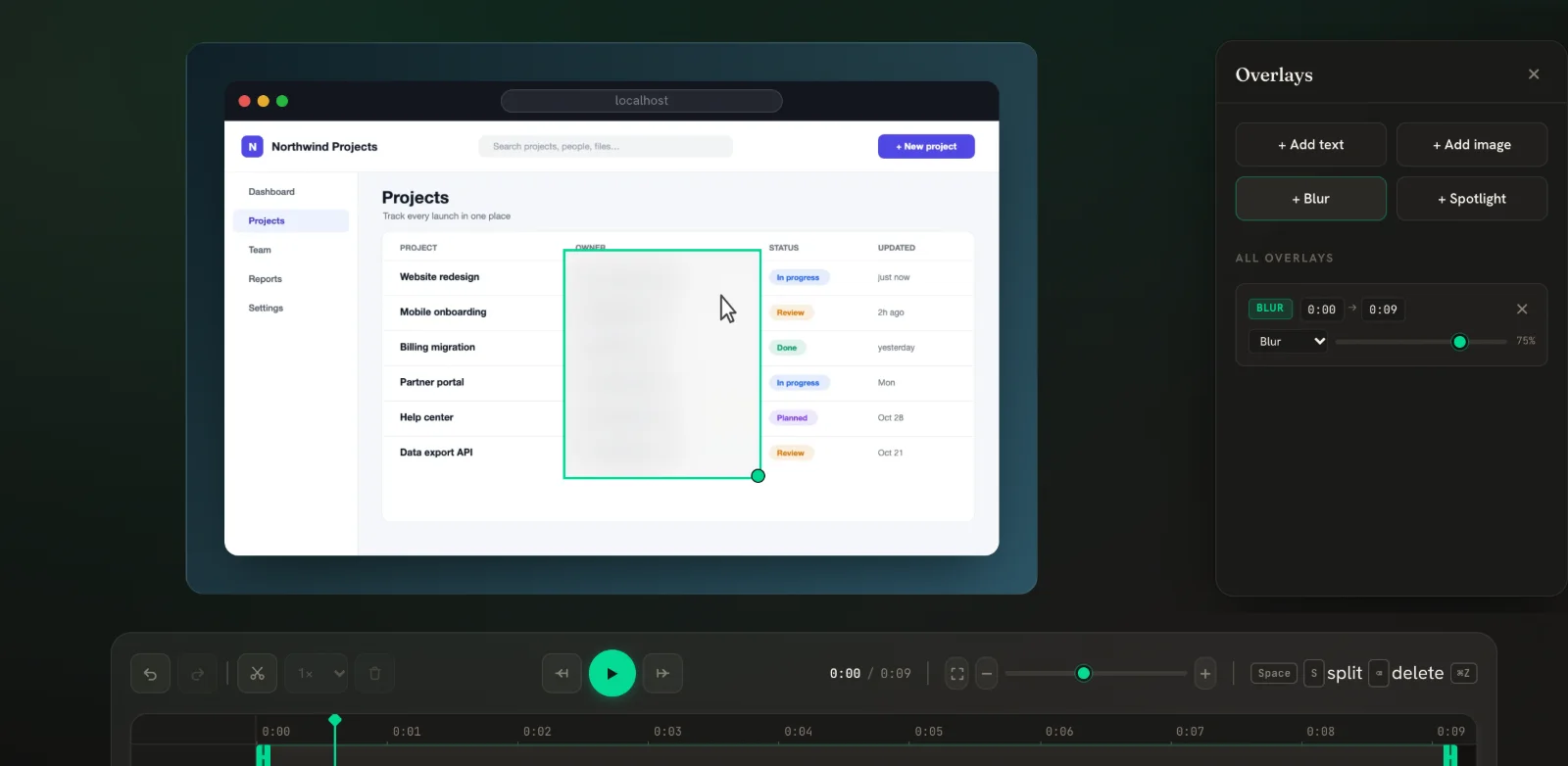 Blur & spotlight New in v0.5Blur emails and keys, or dim everything except one area. Regions stay put even when the video zooms.
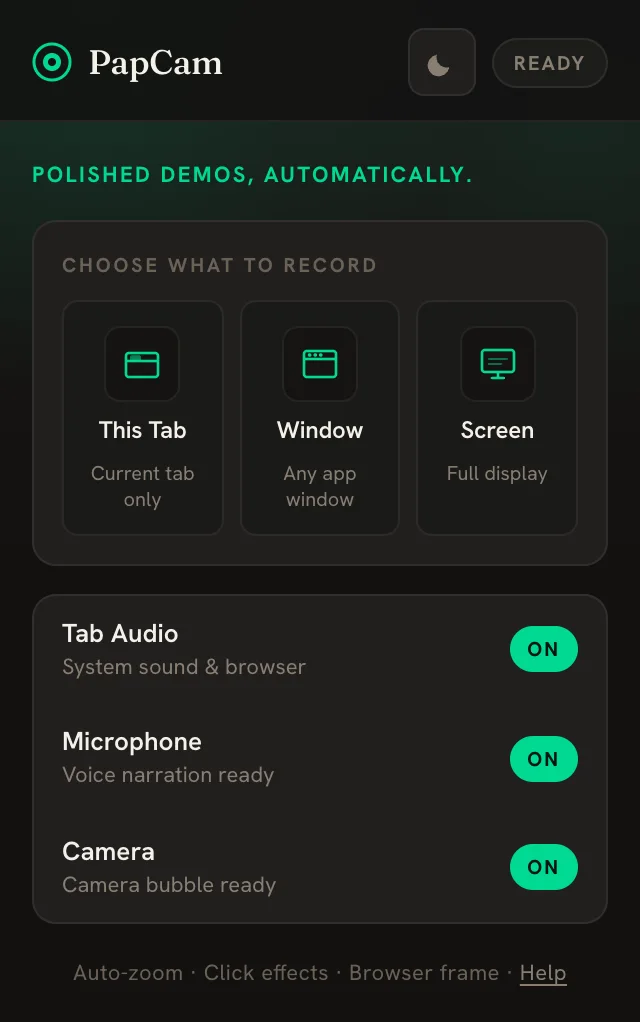 Getting startedInstall the extension, pick a source and record — the editor opens automatically when you stop.