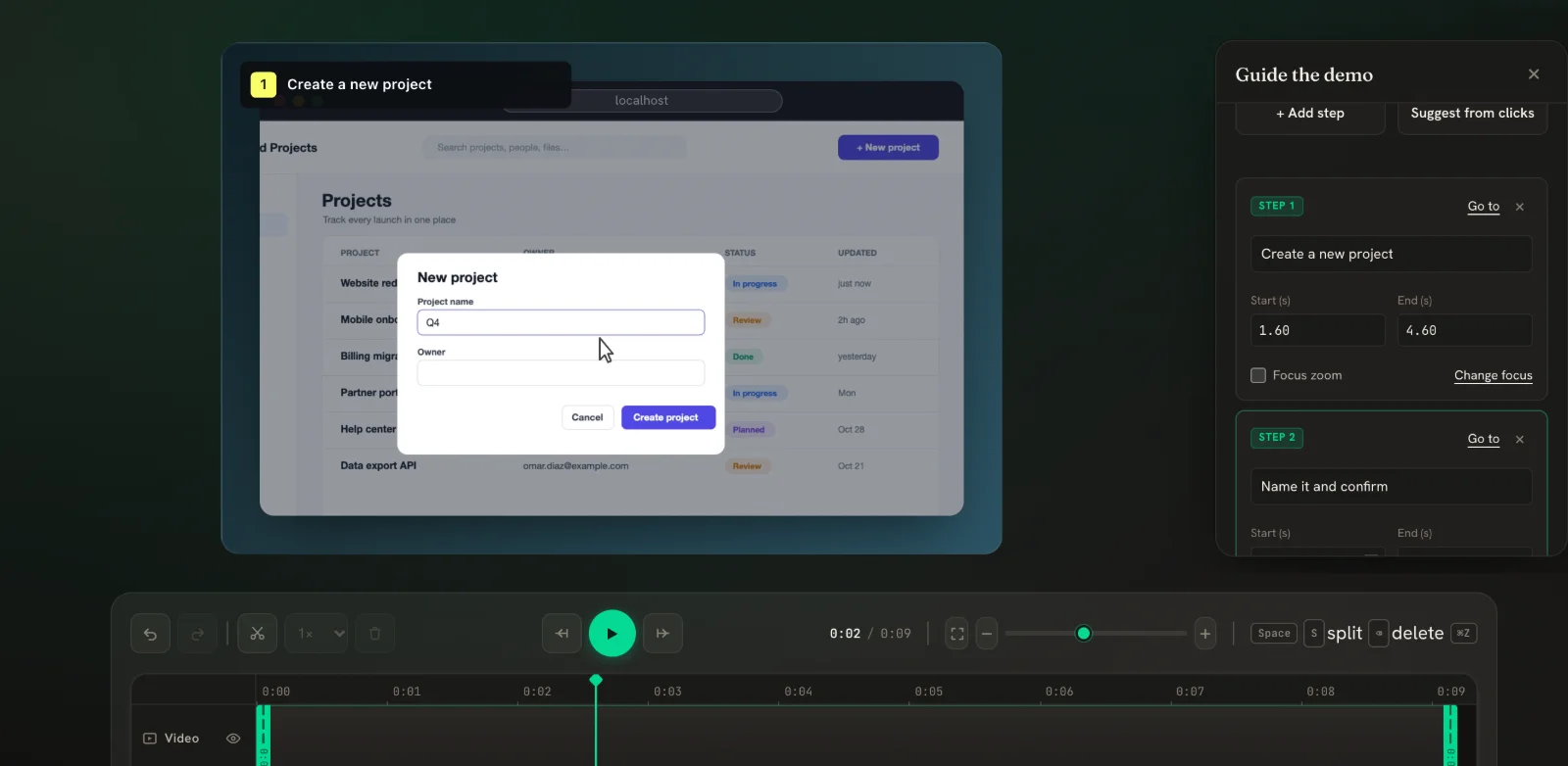
A tutorial is easier to follow when viewers know which step they are on. PapCam's Steps panel adds numbered cards — "1 Create a new project", "2 Name it and confirm" — to the top-left of your video. Steps never change your footage: the recording stays exactly as it is until you add one.
Let PapCam suggest steps from your clicks
- Open the Steps panel from the left sidebar. Its title is Guide the demo.
- Click Suggest from clicks. PapCam proposes one step around each recorded click.
- In Review suggested steps, untick anything you don't need and click Add selected.
- Rename each step in its card. Short, action-first titles work best: "Create a new project", not "Now we are going to create a project".
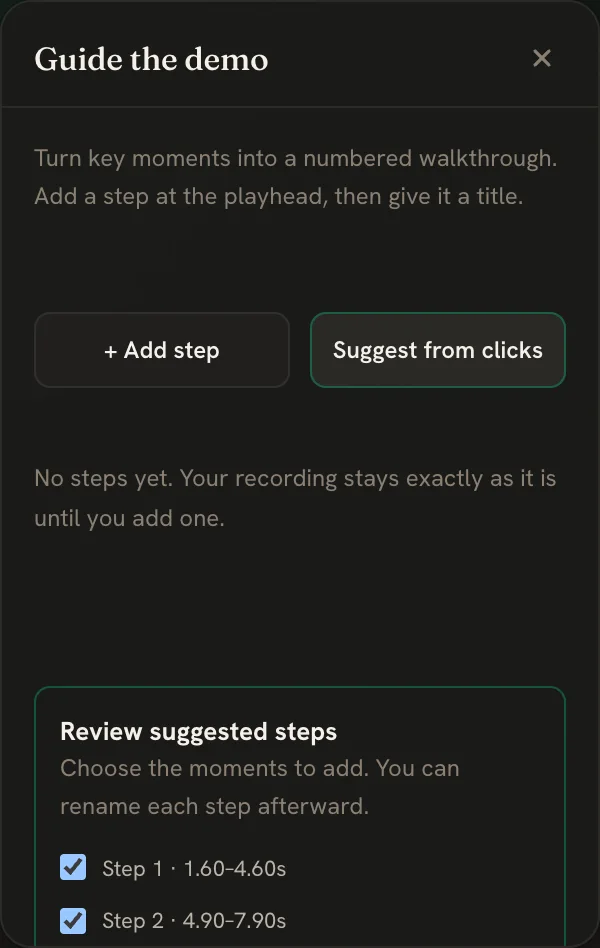
Suggestions need recorded clicks, so they are available for This Tab recordings. For other recordings, add steps by hand.
Add a step by hand
- Move the playhead to where the step should begin.
- Click + Add step.
- Type a title, then adjust Start (s) and End (s) if needed. Use Go to to jump the playhead to a step.
Steps cannot overlap. They also appear on the Steps lane of the timeline so you can see the structure of the whole video at a glance.
Frame a step with focus zoom
Tick Focus zoom on a step to keep the view zoomed into one area for the whole step — handy when the action happens in a small part of the page. Click Change focus, then click the video where the step should focus ("Click the video to choose a focus point"). Press Cancel to keep the previous focus.
When steps help most
Numbered steps shine in how-to videos, onboarding flows and support answers — anything a viewer might follow along with in their own browser. They also make long videos skimmable: a viewer who only needs step 3 can scrub straight to it. For a 15-second feature teaser, skip steps and rely on auto-zoom and captions instead.
Writing good steps
- Keep titles under about six words; long titles wrap to two lines and are cut after that.
- Use one step per user goal, not per click.
- Pair steps with captions for extra context without cluttering the card.
- Undo and redo work for every step change, including suggestions you accepted.
Frequently asked questions
Do steps change my recording?
No. Steps are an overlay. Remove them and the video is exactly as recorded.
Why is "Suggest from clicks" disabled?
The recording has no recorded clicks. That happens with Window, Screen or imported recordings — add steps by hand instead.
Can two steps overlap?
No. PapCam keeps steps in order without overlaps so the numbering always makes sense.
Are steps included in the export?
Yes. Step cards and focus zoom are rendered into MP4, WebM and GIF exports.
Related guides
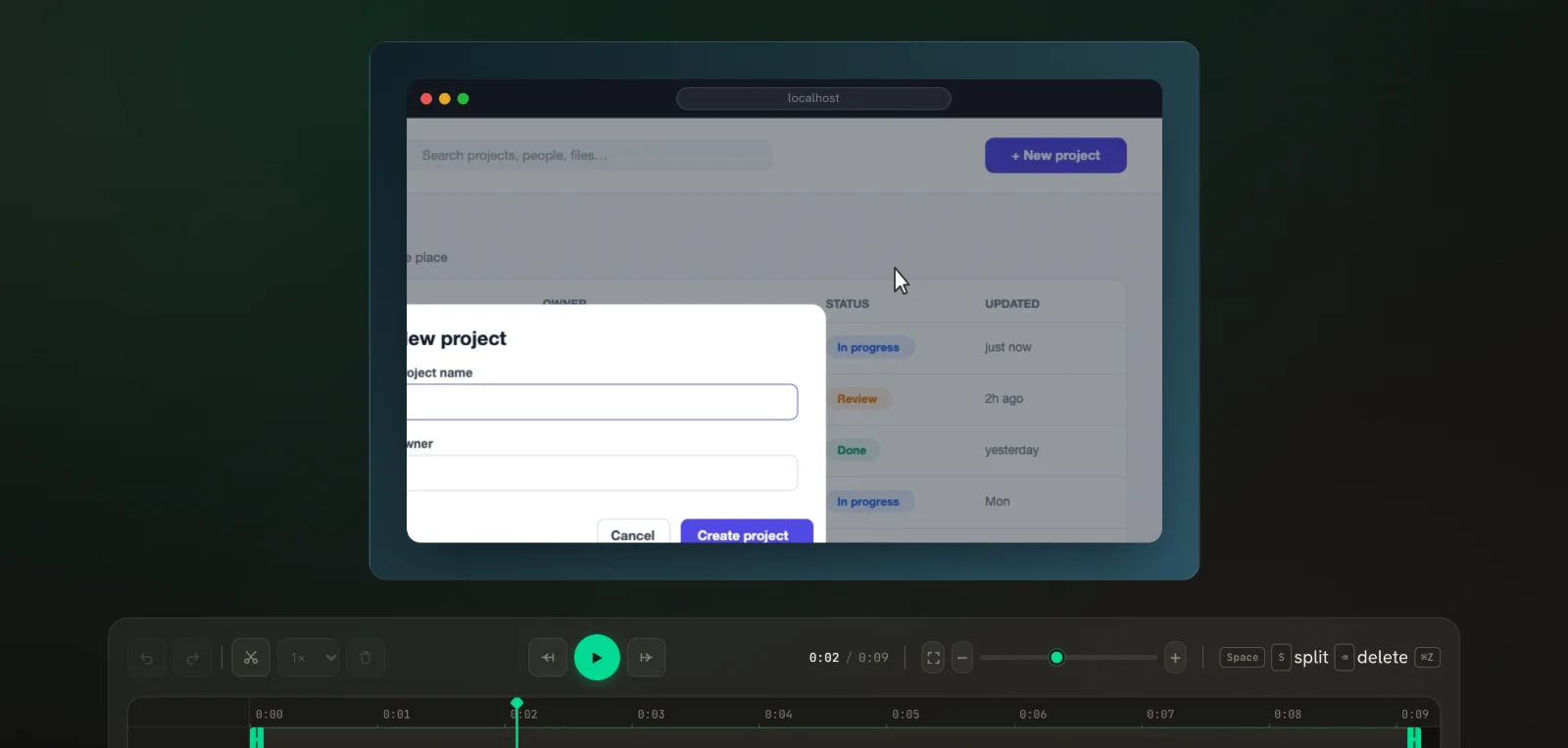 Auto-zoom on clicksPapCam zooms in on every click you made while recording. Tune it, or add zooms by hand.
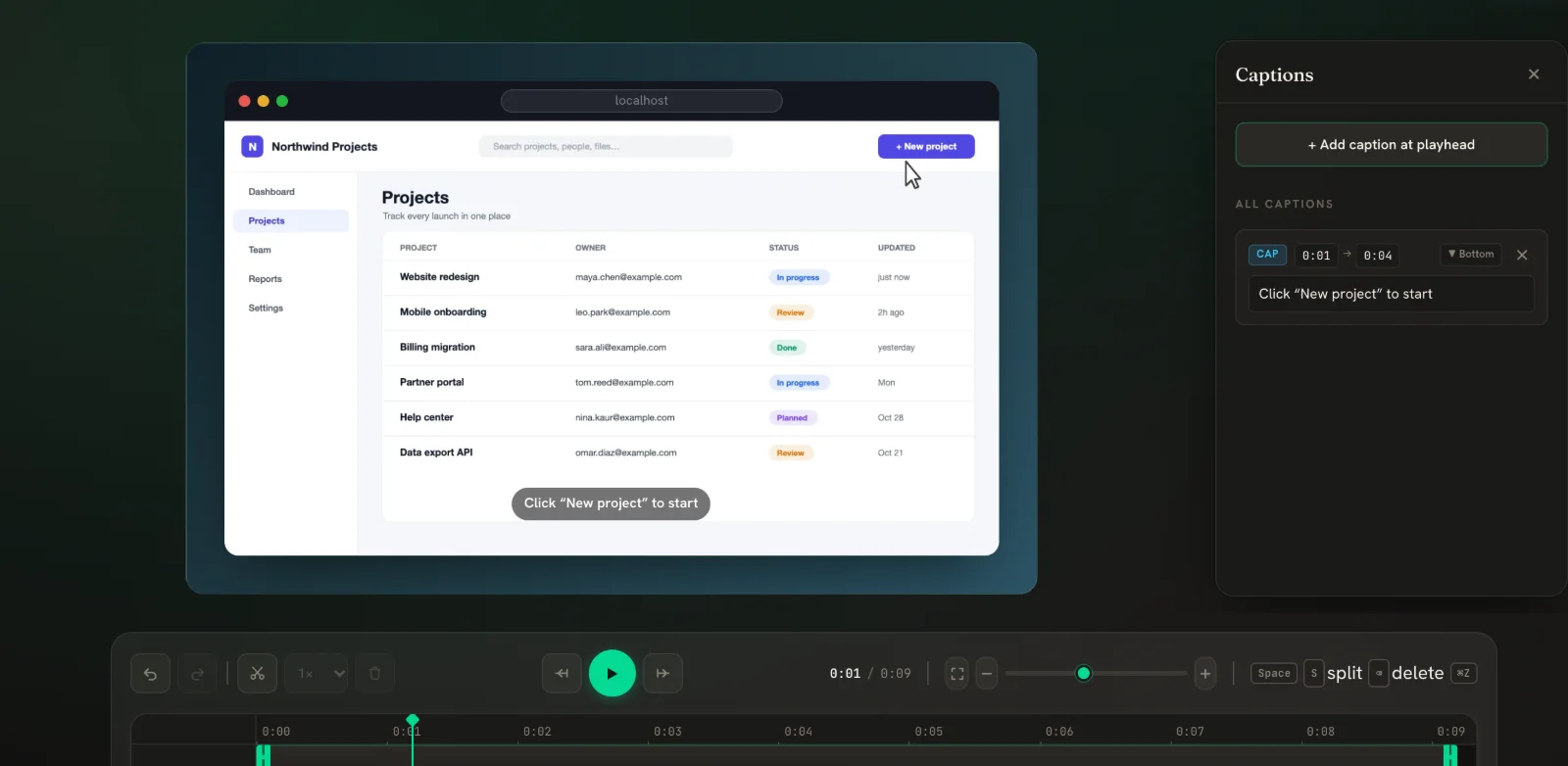 Captions & text overlaysTimed subtitles plus draggable text and image overlays, all exported with the video.
 Trim, split & speedCut mistakes, trim the ends and speed up waiting time — right on the timeline.