A raw screen recording looks like a screenshot. Putting it on a background inside a tidy browser window makes it look designed. PapCam does this with two panels: Background and Frame.
Choose a background
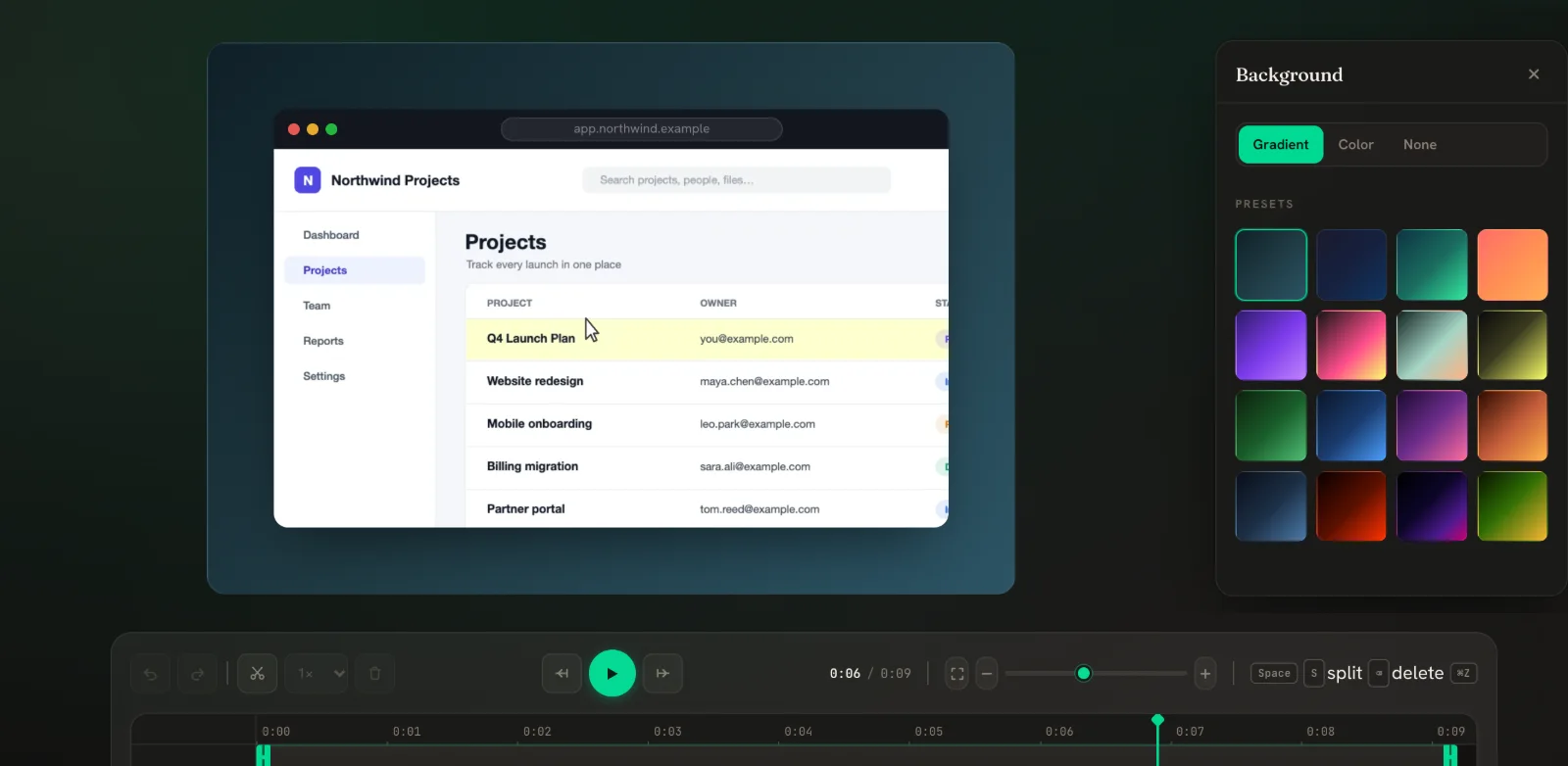
Open the Background panel (BG in the sidebar). Pick a mode at the top:
- Gradient — choose one of the presets.
- Color — choose a swatch or enter any hex colour.
- None — no background; the recording fills the frame.
Adjust padding
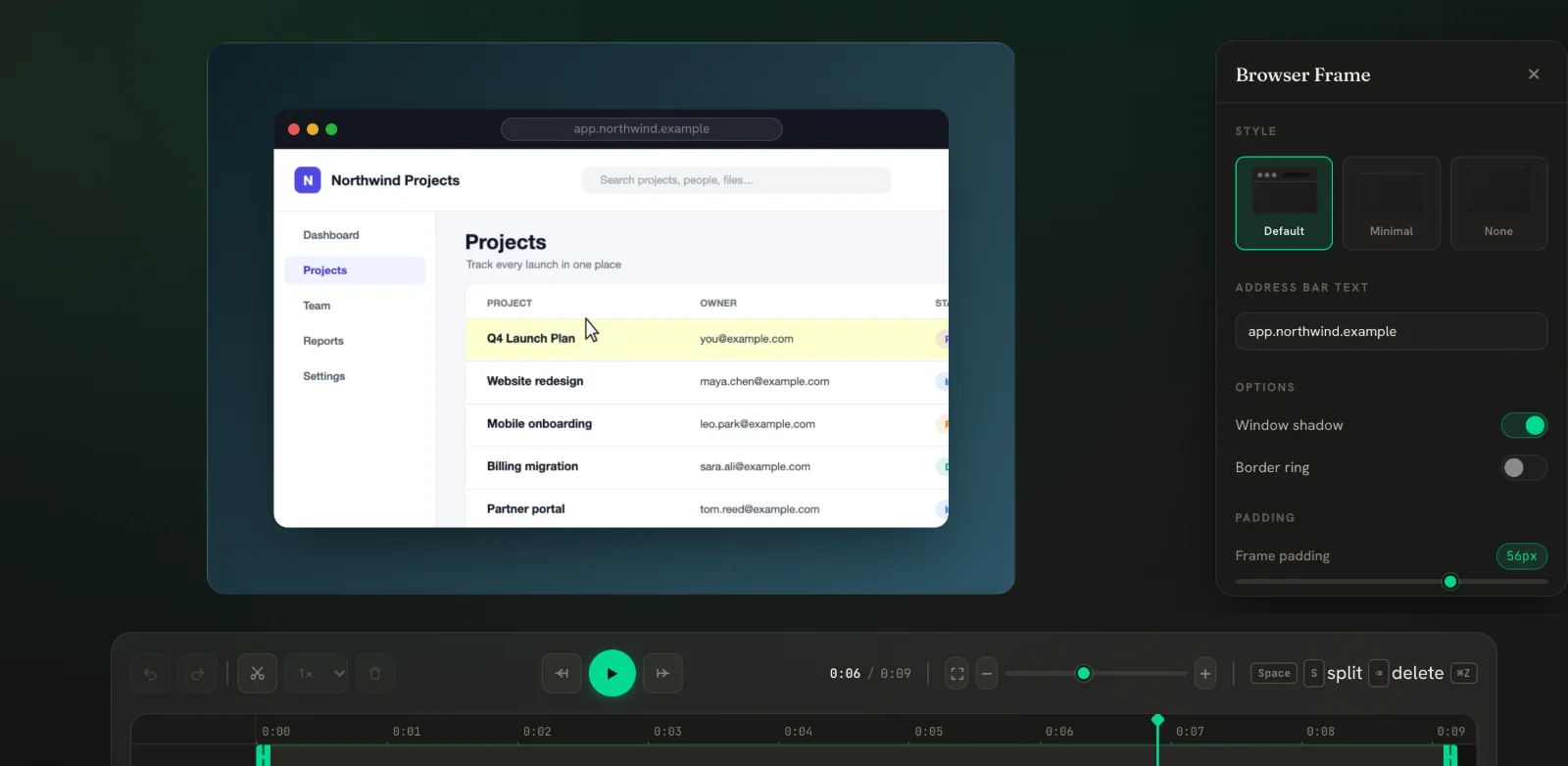
The Frame padding slider controls how much background shows around the window. More padding feels airy and premium; less padding keeps the UI large and readable, which is better for vertical videos.
Crop black bands
Some recordings have empty bands at the top or bottom — for example an empty toolbar area or letterboxing. Use Top crop and Bottom crop to trim them away without re-recording.
Style the browser frame
Open the Frame panel (its title is Browser Frame):
- Pick a Style: Default (window dots and an address bar), Minimal, or None.
- Type the Address bar text you want viewers to see — your product's domain looks better than
localhost. - Turn Window shadow on for depth, and Border ring on for a subtle outline on dark backgrounds.
Pick the shape of the video
The buttons at the top of the editor set the output shape: 16:9 for YouTube and docs, 9:16 for Reels and Shorts, 1:1 for LinkedIn. Next to them, Crop fills the shape (cutting edges if needed) and Fit shows the whole recording with background around it.
Recommended settings by destination
| Where it goes | Shape | Background & frame |
|---|---|---|
| Landing page or docs | 16:9 | Brand-coloured gradient, Default frame with your domain, window shadow on |
| Reels, Shorts, TikTok | 9:16 with Fit | Low padding so the UI stays large, Minimal frame |
| LinkedIn post | 1:1 | Solid colour, Default frame |
| Bug report or internal update | Native | Background None, frame None — just the recording |
Design tips
- Choose a background that contrasts with your app: dark gradients for light apps, light colours for dark apps.
- Keep padding consistent across a series of videos so they look like a set.
- Use Fit for vertical exports of wide apps so nothing important is cut off.
Frequently asked questions
Can I use my brand colour as the background?
Yes. Choose Color in the Background panel and enter your brand's hex value.
How do I remove the browser frame?
Open the Frame panel and choose the None style.
What does the address bar show?
Whatever you type in "Address bar text". It is only a visual label; it doesn't change the recording.
Will the background appear in GIF exports?
Yes. Background, padding and frame are part of every export format.
Related guides
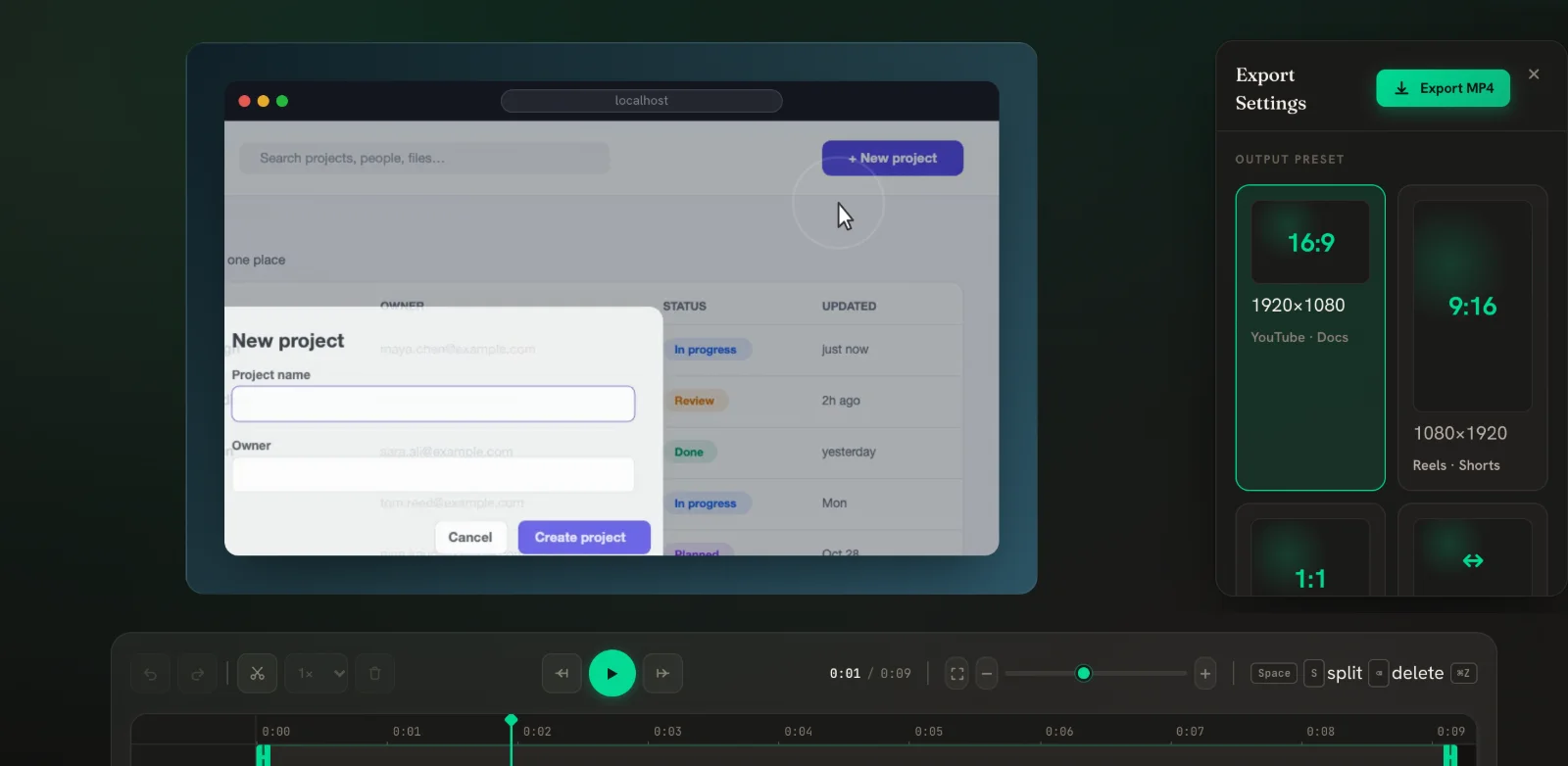 Export MP4, WebM & GIFPick a size for where the video will live, choose a format, and download.
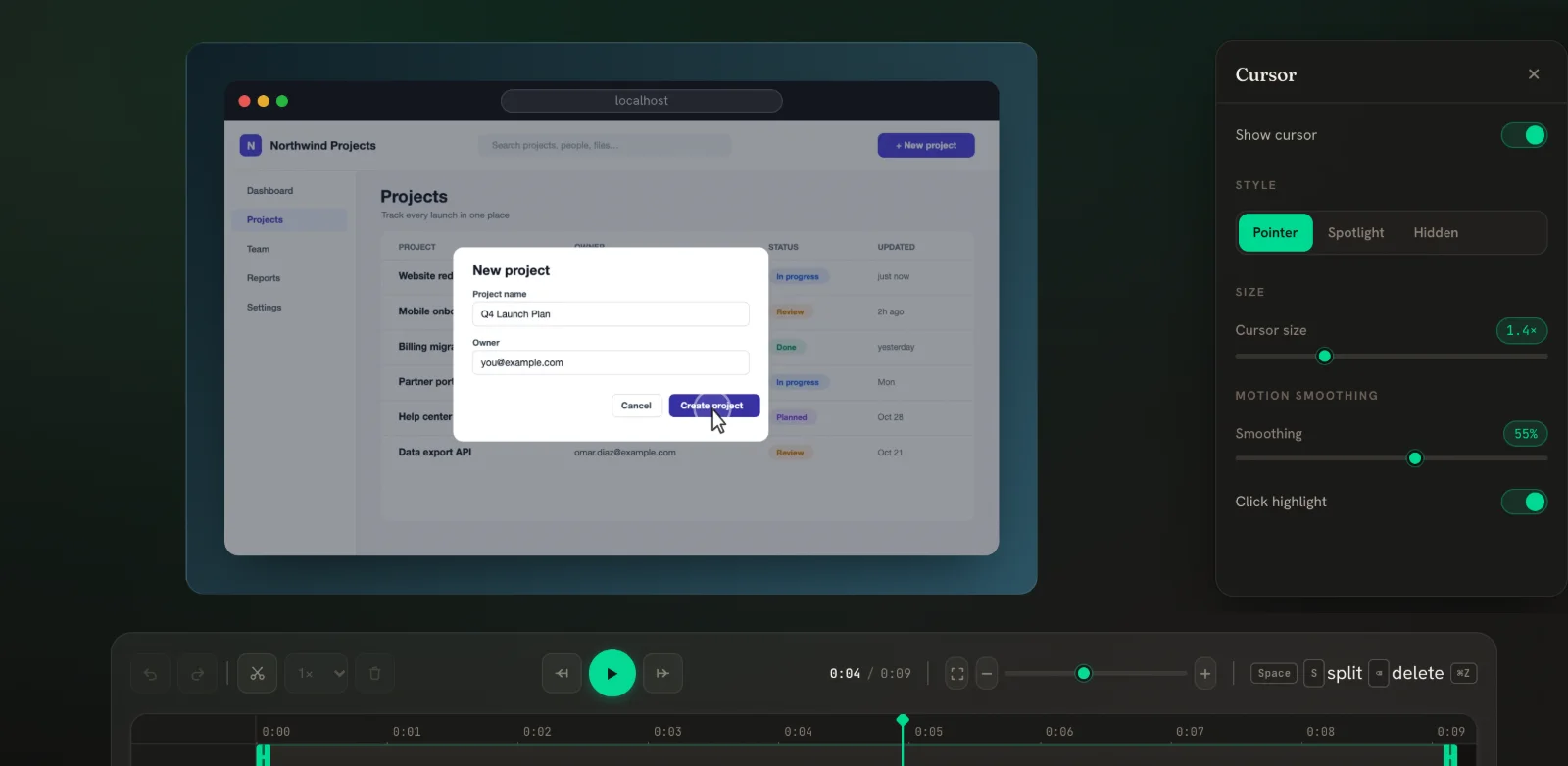 Cursor & click effects New in v0.5A smooth, crisp cursor with a click ring — redrawn from your real mouse path.
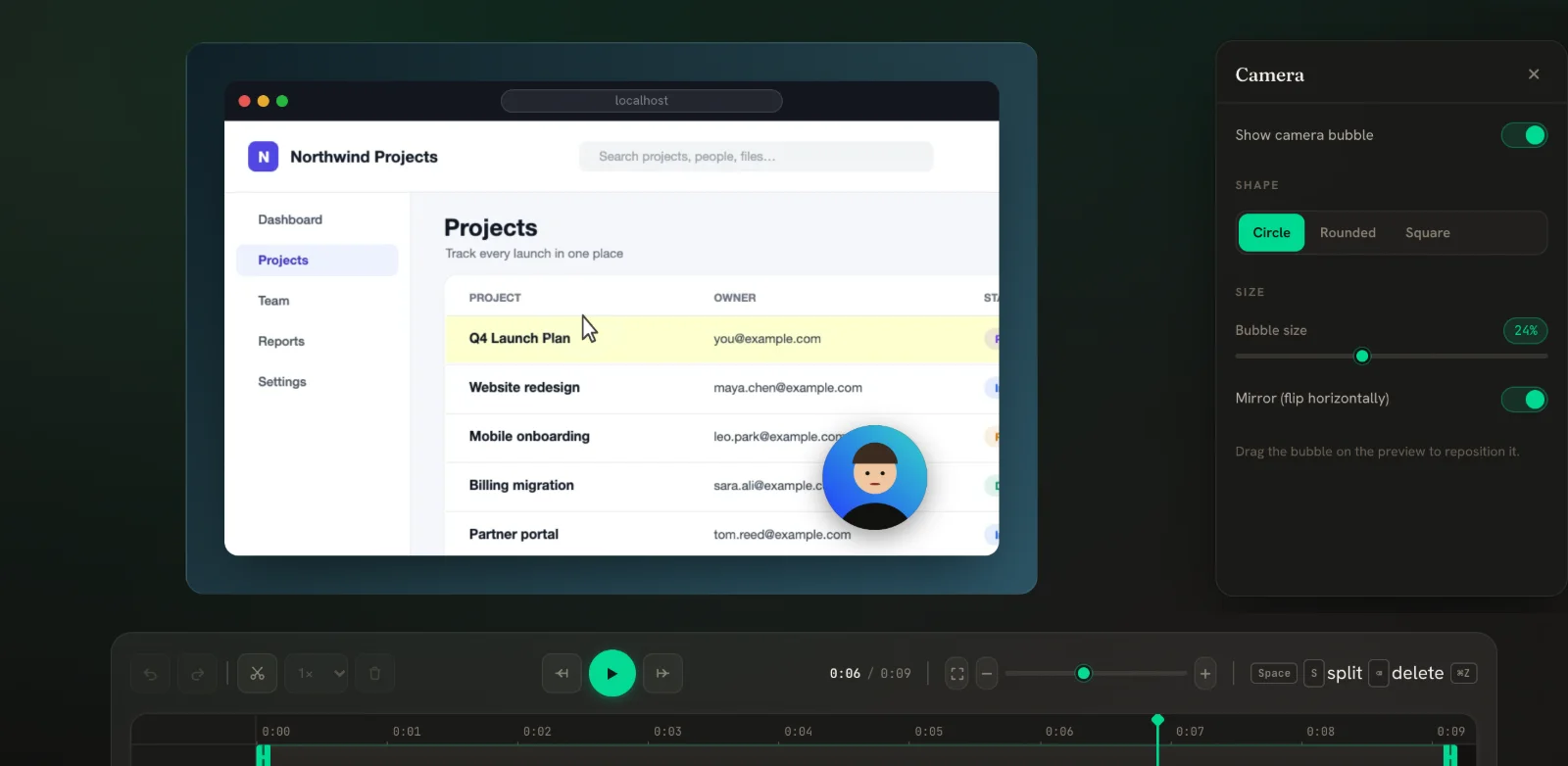 Webcam & microphone New in v0.5Record your voice and a webcam bubble, then reshape and move the bubble in the editor.