Real demos show real data: customer emails, API keys, invoice amounts. Instead of re-recording with fake data, PapCam lets you blur any area. And when you want attention on one part of the screen, a spotlight dims everything else.
Blur an area
- Move the playhead to where the sensitive data first appears.
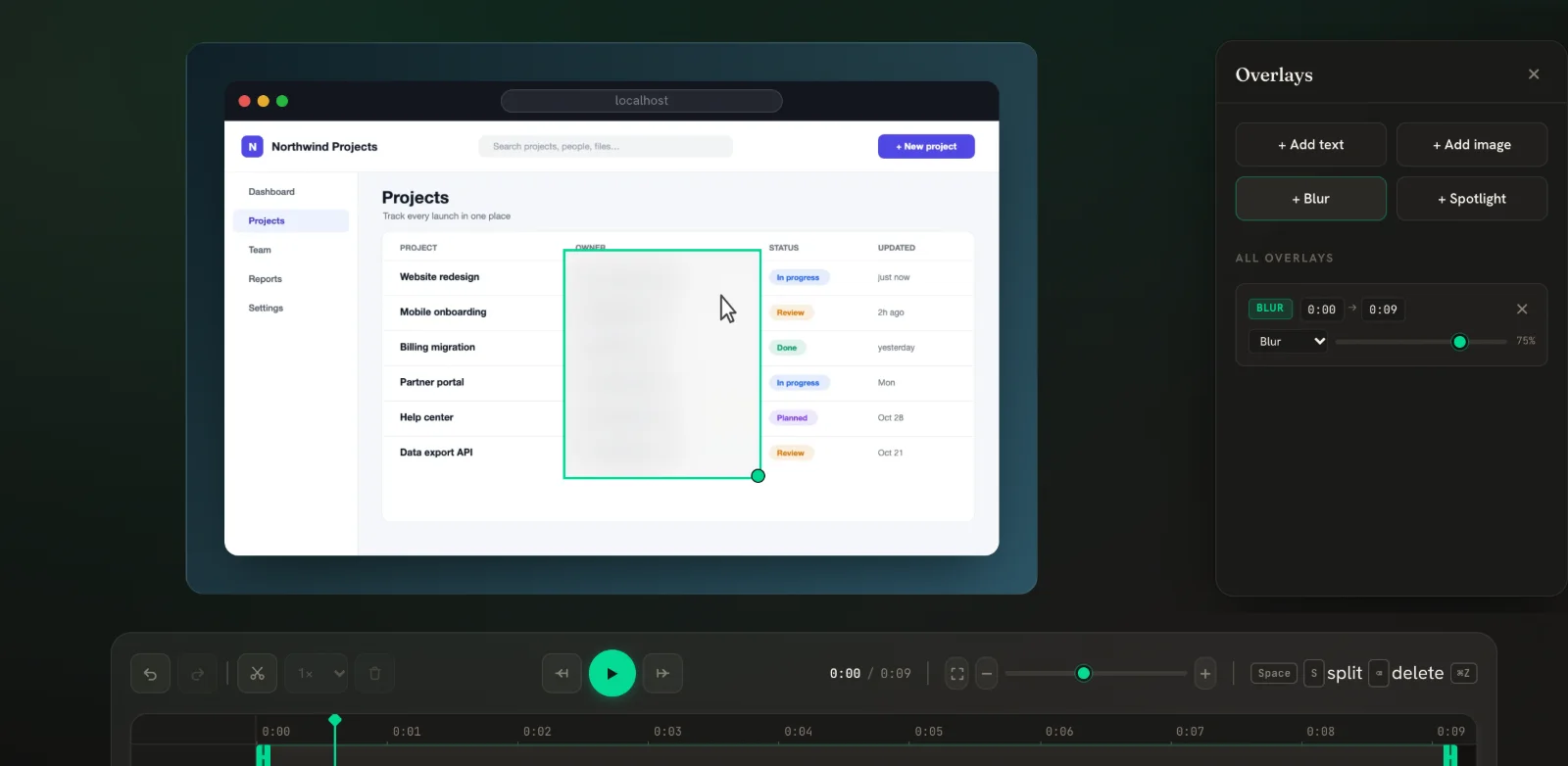
- Open the Overlays panel and click + Blur.
- Drag the box over what you want to hide, and drag its corner handle to resize it.
- In its card (labelled BLUR), set the start and end time, and raise the strength slider until the text is unreadable.
Spotlight one area
- In the Overlays panel, click + Spotlight.
- Place the box around the button, field or chart you are talking about.
- Use the slider to choose how dark the rest of the frame becomes.
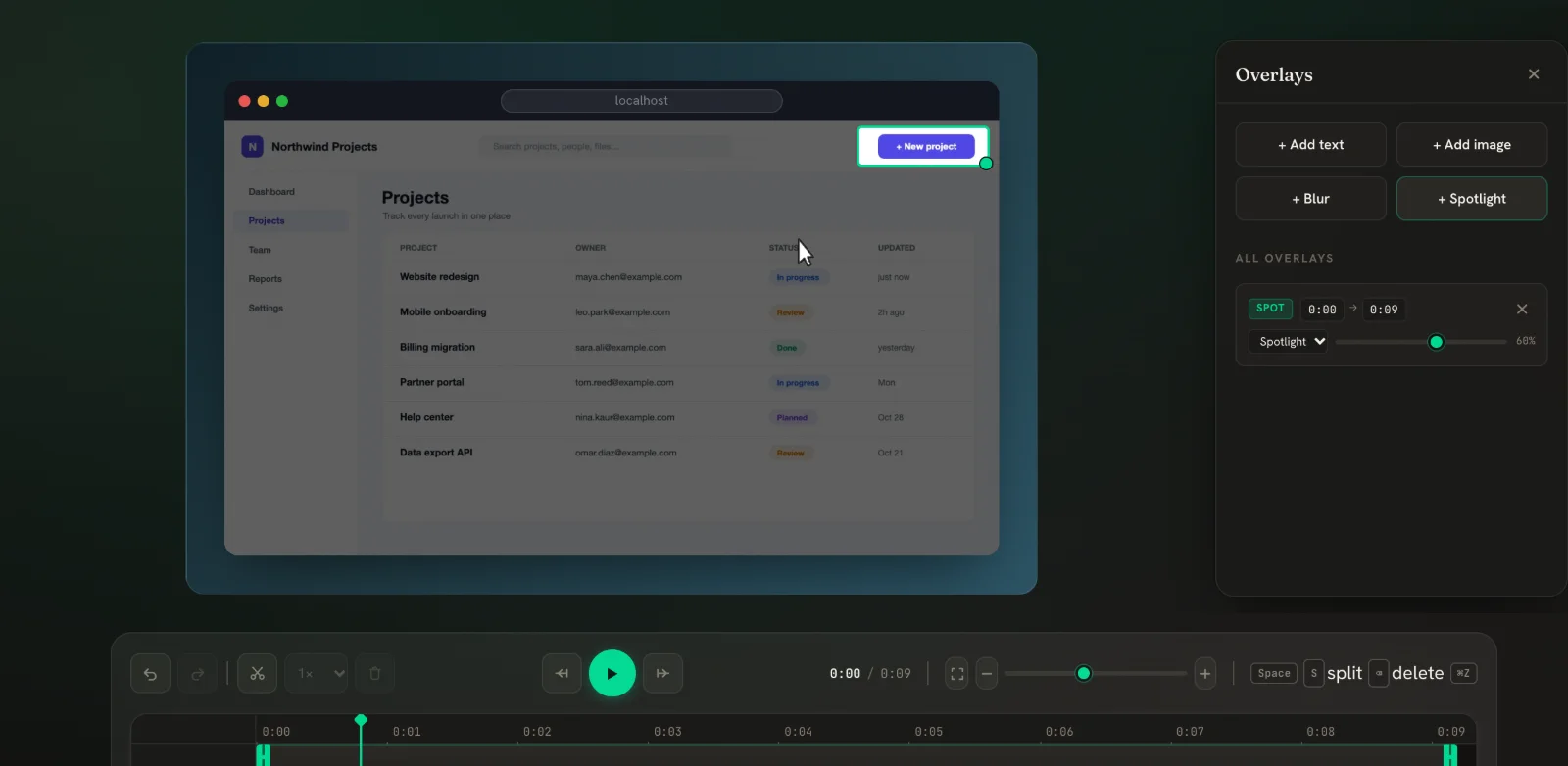
You can switch a region between Blur and Spotlight at any time with the dropdown in its card.
Regions follow the zoom
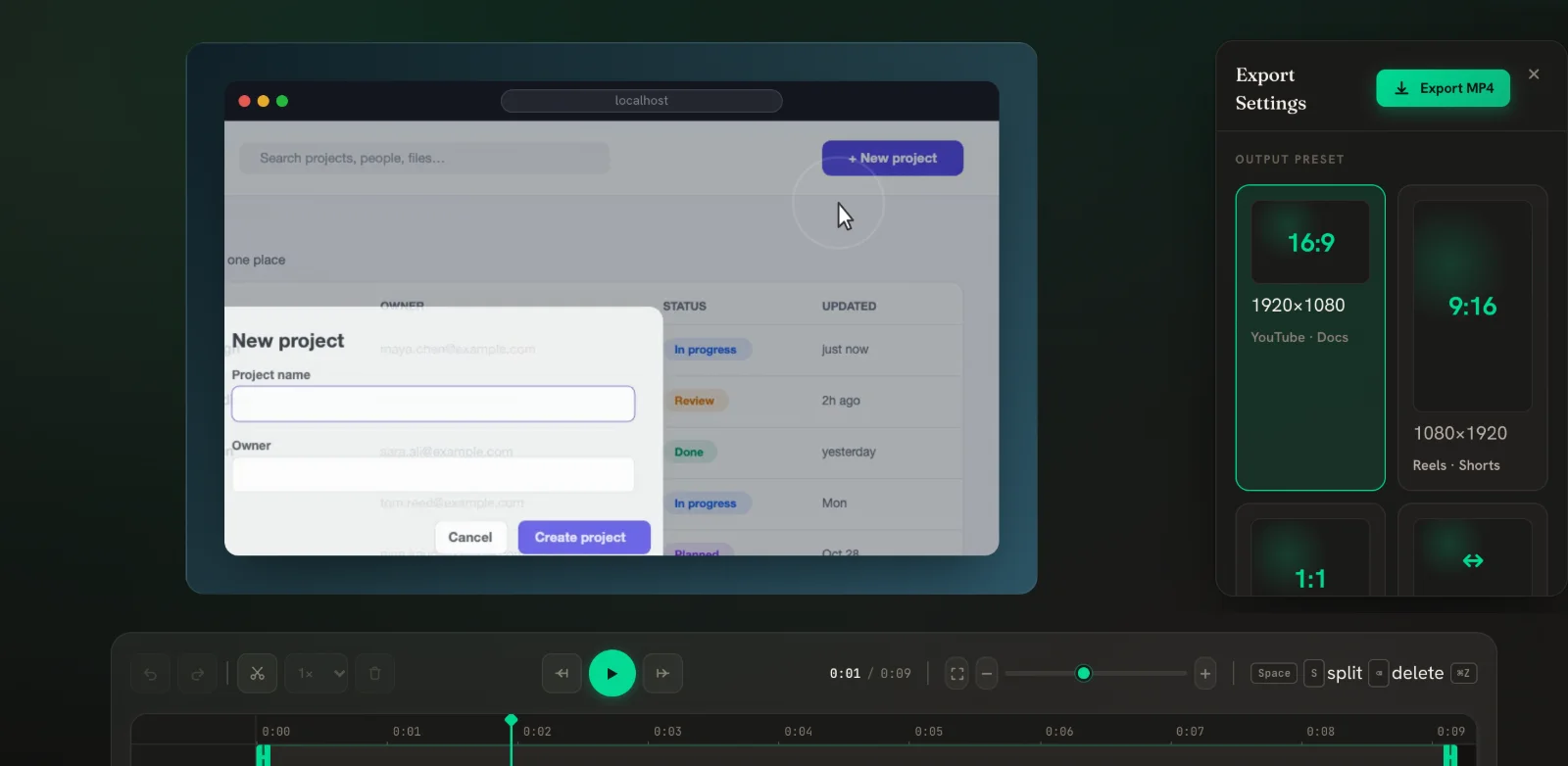
When auto-zoom moves the view, blur and spotlight regions move with the page underneath them. A zoom can never slide hidden data out from under the blur. This is also true in every exported format.
What to blur
- Email addresses, names and avatars of real customers or colleagues.
- API keys, access tokens, passwords and one-time codes.
- Billing details, invoice amounts and internal revenue figures.
- Internal URLs, project names and anything under NDA.
Use a spotlight instead of blur when nothing is secret but the screen is busy — for example a dashboard with many charts where only one number matters.
Privacy checklist before you share
- Play the whole video once with the sound off and watch only the edges of the screen.
- Check notifications, browser bookmarks bars and avatars as well as the main content.
- Make each blur last a little longer than the data is visible — start it slightly early, end it slightly late.
- Export and watch the final file; that is what your viewers will see.
Frequently asked questions
Can blurred text be recovered from the video?
The exported video only contains the blurred pixels. Use a high strength so text is fully unreadable, and check the final export before sharing.
Does the blur move when the video zooms?
Yes. Regions are tied to the page underneath them, so they stay over the same content during zooms.
Can I blur something only for a few seconds?
Yes. Every region has its own start and end time in its card.
What is the difference between Blur and Spotlight?
Blur hides the area inside the box. Spotlight keeps the box sharp and darkens everything outside it.
Related guides
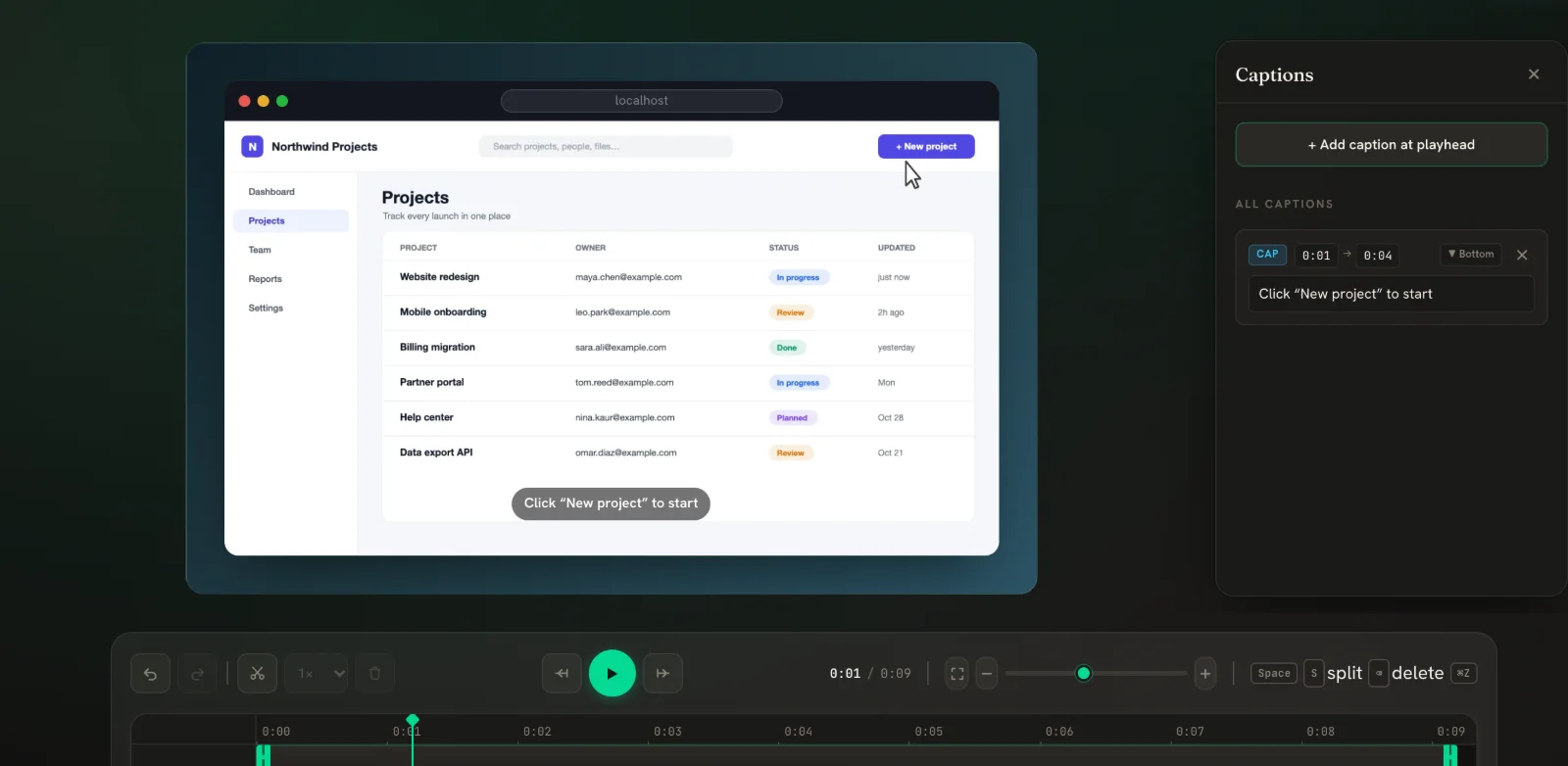 Captions & text overlaysTimed subtitles plus draggable text and image overlays, all exported with the video.
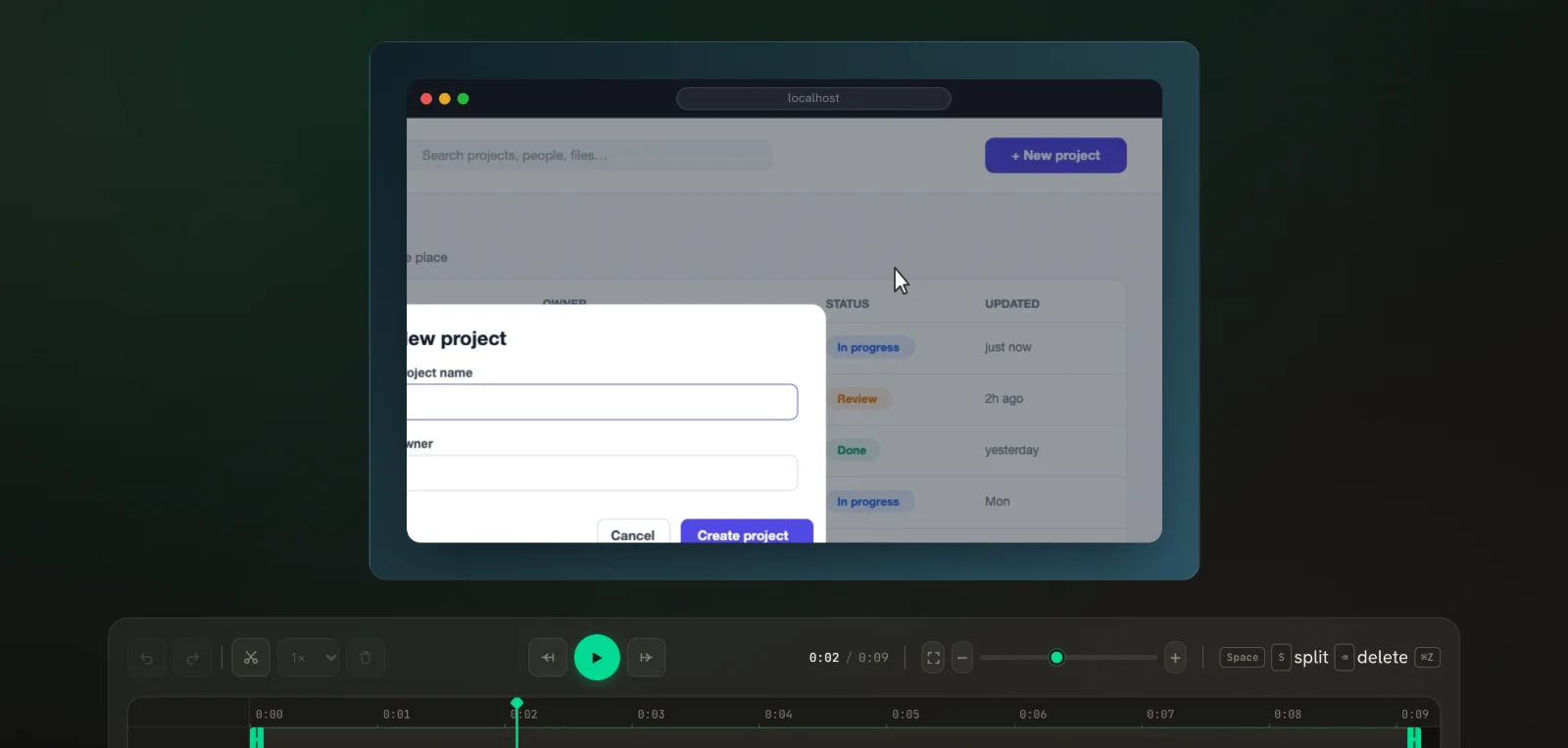 Auto-zoom on clicksPapCam zooms in on every click you made while recording. Tune it, or add zooms by hand.
 Export MP4, WebM & GIFPick a size for where the video will live, choose a format, and download.