When the edit is done, the Export panel turns it into a file. Everything you see in the preview — zooms, background, frame, cursor, captions, overlays, blur, webcam and steps — is rendered into the video.
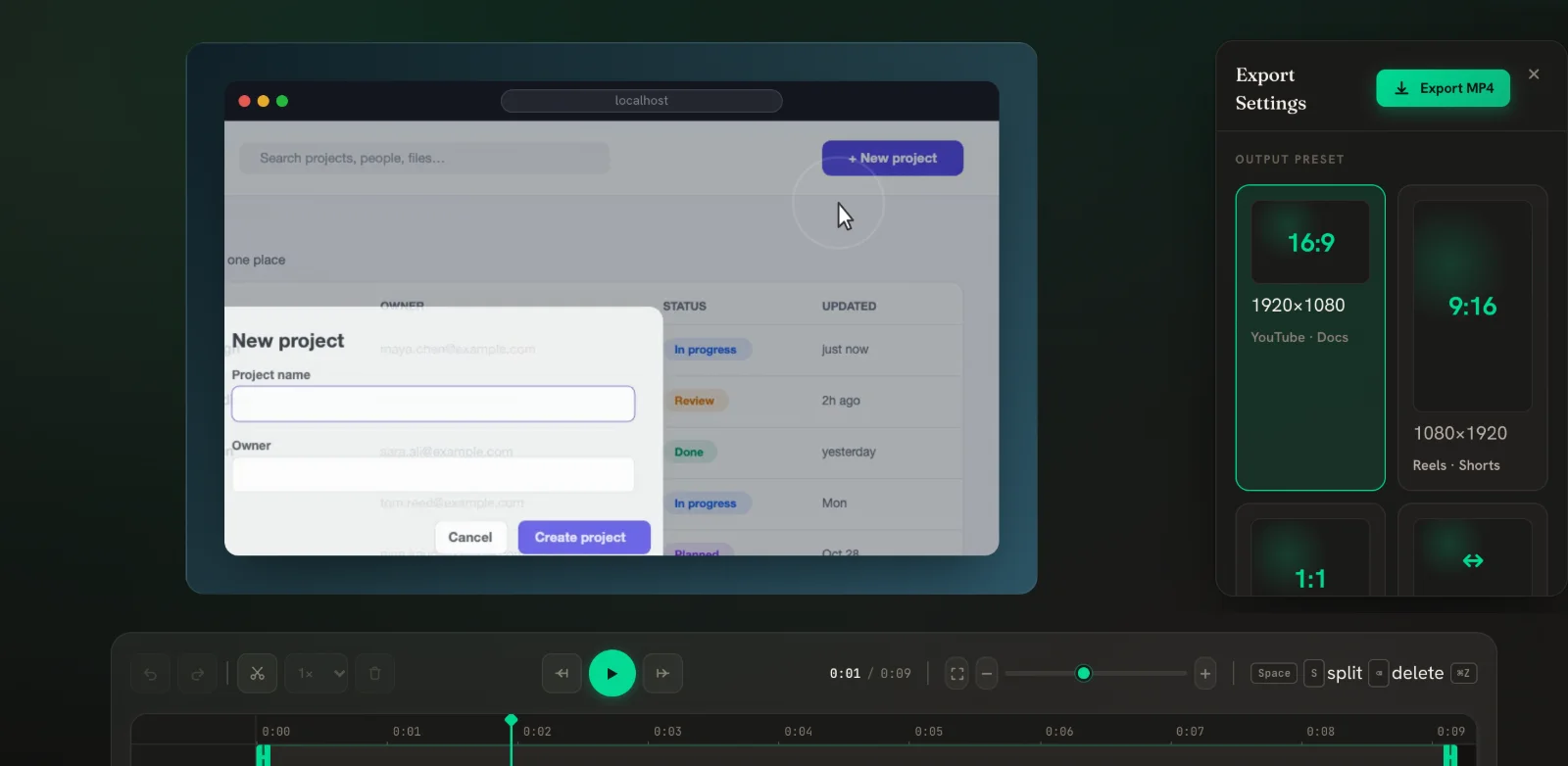
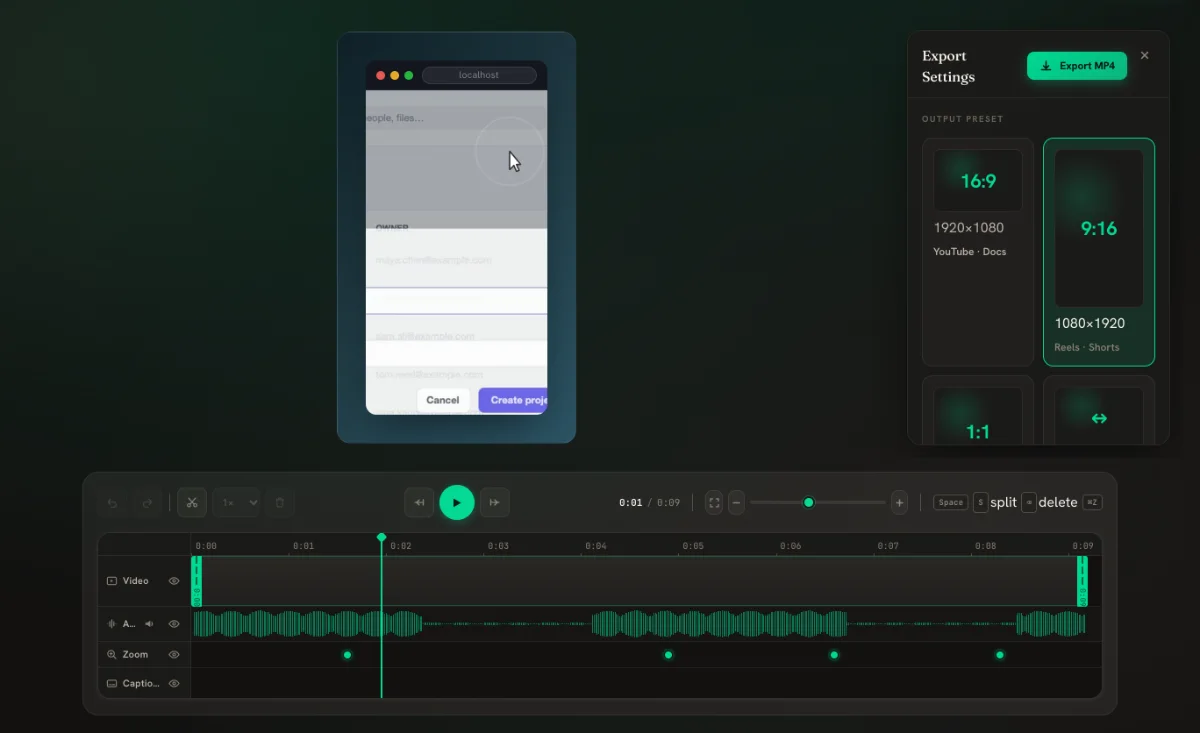
1. Choose an output preset
- 16:9 · 1080p — YouTube, documentation and websites.
- 9:16 · 1080p — Reels, Shorts and TikTok.
- 1:1 · 1080p — LinkedIn and other square feeds.
- Native — the size of your source recording.
The 16:9, 9:16 and 1:1 buttons at the top of the editor change the preview to match, so you can check the layout before exporting. Use Fit if a wide app gets cut off in a vertical frame.
2. Choose a format
- MP4 New in v0.5 — H.264 video with AAC audio. Plays everywhere and renders faster than real time. The best default.
- WebM — renders while the video plays, so it takes as long as the video. Keep the tab open and visible until it finishes.
- GIF New in v0.5 — silent, up to 720 px and 15 frames per second. Perfect for READMEs, pull requests and Slack, where video doesn't auto-play.
If your browser can't encode H.264, PapCam automatically falls back to WebM.
3. Export and download
- Click the Export button in the panel or at the top right.
- Wait for "Rendering your video…" to finish. The export uses your settings from the moment you clicked, so you can keep reading while it runs.
- The file downloads to your normal Downloads folder.
Quality and file size
1080p presets are sharp enough for full-screen playback on most displays. If your recording was made on a small window, Native avoids upscaling it. Longer videos produce bigger files; trimming dead time and speeding up waiting parts is the easiest way to keep file size and viewer attention in check.
Your project is saved automatically
Edits save automatically while you work — the top bar shows Saved. Reopen the recording later and everything is still there, so you can export again in another size. If a save ever fails, click Retry.
Tips for sharing
- Export a 16:9 MP4 for your docs and a 9:16 MP4 for social from the same project.
- For GIFs, keep the clip short and trim it tightly — GIF files grow quickly.
- Watch the exported file once before sharing, especially if you used blur.
Frequently asked questions
Which format should I choose?
MP4 for almost everything. Use GIF where videos don't play inline, like GitHub READMEs.
Why does WebM export take so long?
WebM is recorded while the video plays, so it takes the length of the video. MP4 is usually much faster.
Why does my GIF have no sound?
The GIF format has no audio. Export MP4 or WebM to keep sound.
Can I export the same project in several sizes?
Yes. Change the preset and export again; your edits are kept.
Related guides
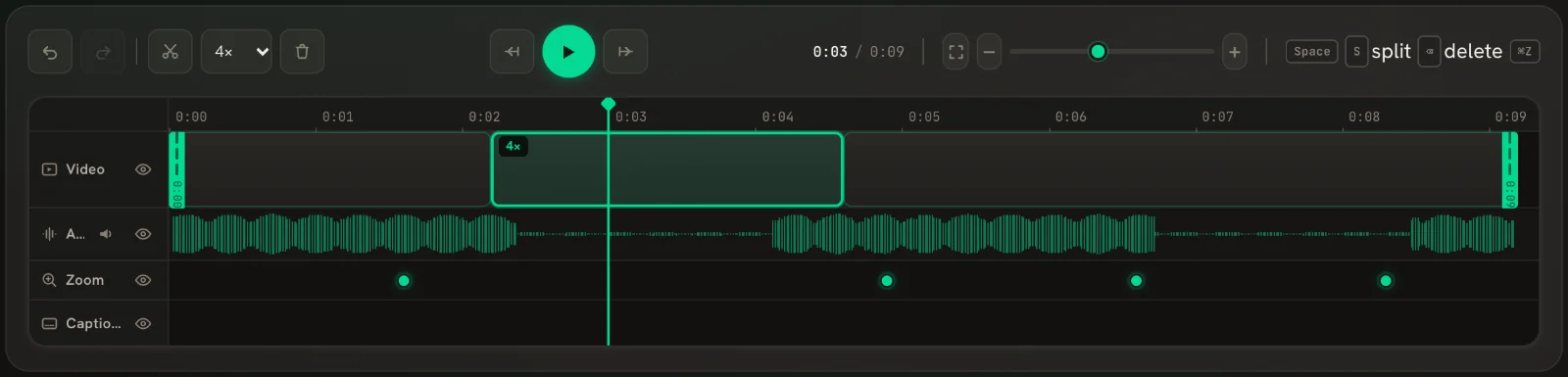 Trim, split & speedCut mistakes, trim the ends and speed up waiting time — right on the timeline.
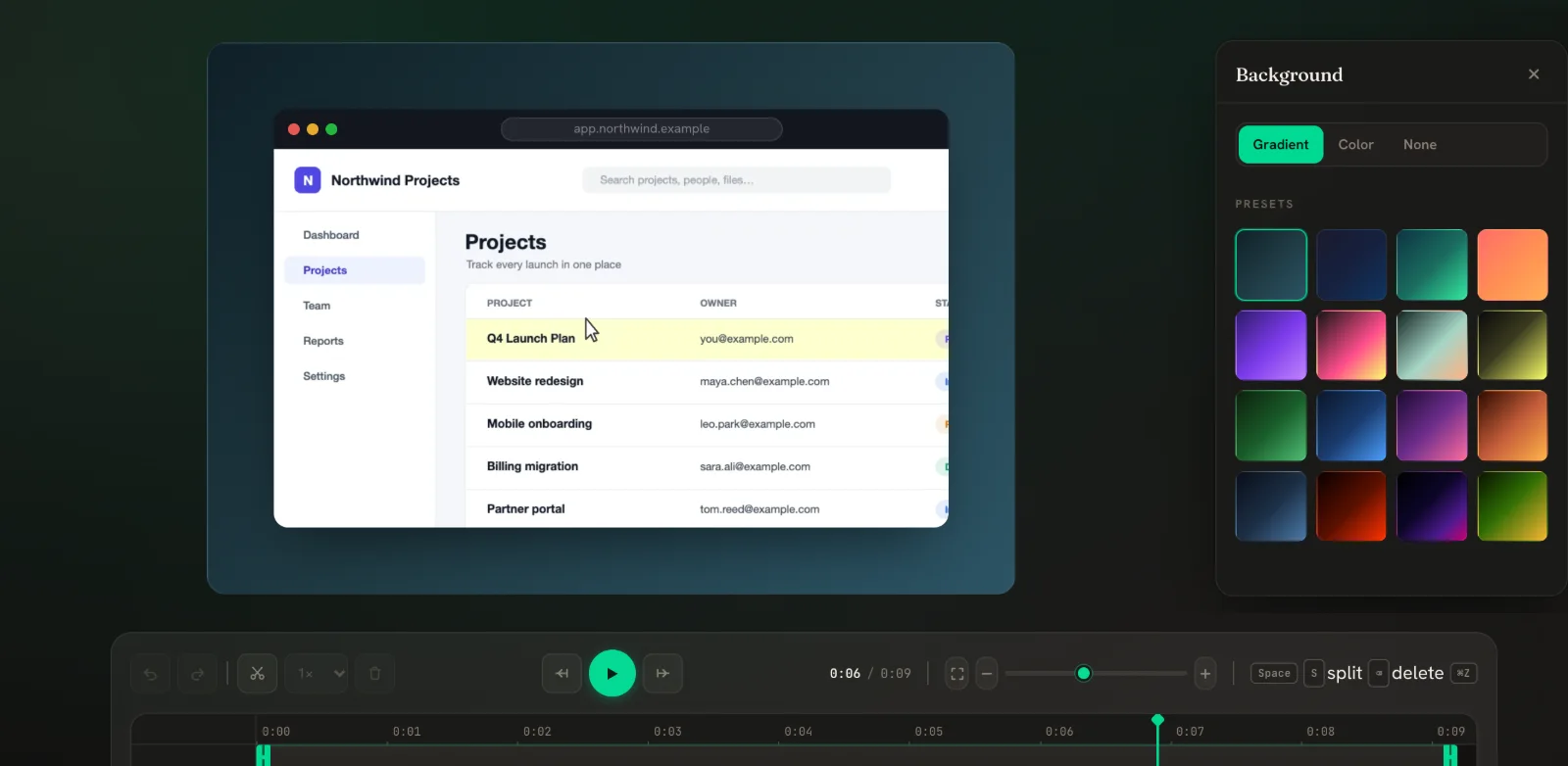 Background & browser frameWrap your recording in a gradient or colour, with a clean browser window around it.
 TroubleshootingQuick fixes for permissions, missing sound or zooms, slow exports and save errors.